We remain fully operational. Our teams are working around the clock to ensure your deliveries continue safely.

Descargar la aplicación


Servicios al cliente
Sobre nosotros
Copyright © 2025 Desertcart Holdings Limited
Descargar la aplicación
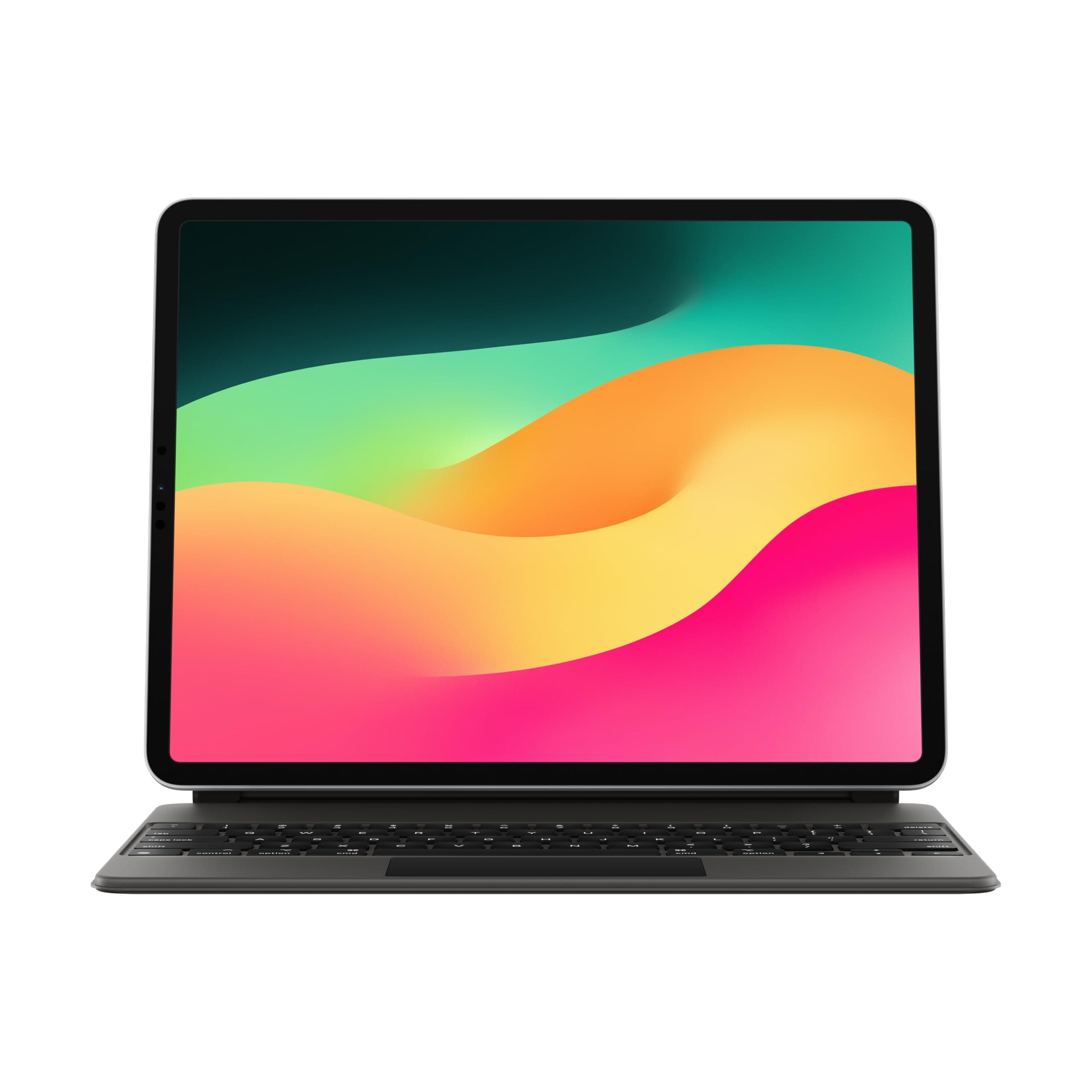
⌨️ Elevate your iPad game — type, track, and charge like a pro wherever you go!
The Apple Magic Keyboard for iPad Pro 12.9-inch (3rd-6th gen) and iPad Air (M2) is a premium keyboard case featuring backlit scissor-switch keys, a built-in multi-touch trackpad, and a floating cantilever design for adjustable viewing angles. It offers front and back protection, USB-C pass-through charging, and instant magnetic attachment—transforming your iPad into a versatile, travel-ready productivity hub.
| Brand | Apple |
| Compatible Devices | iPad Air 13-inch (M2), iPad Pro 12.9-inch (3rd generation), iPad Pro 12.9-inch (4th generation), iPad Pro 12.9-inch (5th generation), iPad Pro 12.9-inch (6th generation) Compatible Devices iPad Air 13-inch (M2), iPad Pro 12.9-inch (3rd generation), iPad Pro 12.9-inch (4th generation), iPad Pro 12.9-inch (5th generation), iPad Pro 12.9-inch (6th generation) See more |
| Connectivity Technology | Bluetooth, Smart Connector, USB-C |
| Keyboard Description | Flexible, Integrated, Gaming, Mechanical, Multi Functinoal, Multimedia, Wireless |
| Recommended Uses For Product | Compatible with ipad Pro 12.9 |
C**Y
Love it
I travel a lot for work, and use the iPad Pro as my entertainment on the plane or in the hotel, my presentation tool with clients, and for general computer tasks. But it was never quite ‘there’ for everything I needed. Sometimes I might want to do various tasks that still had me reaching for my MacBook Air or Mac Studio when I returned home. Eventually, however, I went on a minimalist spree of lightening the load for travel. So I took a punt on this ridiculously priced keyboard. While I am still in the honeymoon phase, and only on my first business trip, I am already completely converted. The keyboard itself is outstanding. Feels as good as a laptop. The lighting is smart, coming on at just the right moment when ambient light in the room would make seeing the keys a little tough. The touch pad is smaller than a laptop, but super functional, and integrated into the OS far better than I imagined it would be. So between that and the ability to touch the screen, it is an absolute winner. On the plane, and in the hotel, if I just want to watch a movie or TV show, I sometimes use a relatively cheap stand. But when I want to type something, I can just pop this onto the magnets and type away. A few years back, I had a different MacBook which developed a flaw and needed a repair. So I bought a keyboard for my iPad, and remember being very disappointed. There was lag, it was a very cheesy solution, and as soon as my Mac came back from repair, I returned the keyboard for a refund. Fast forward, and my M1 iPad Pro 12.9 flies with this keyboard. No lag, in fact it is as fast as my Air. The only real issues are the limitations of iPadOS, and various applications that either offer a cut down or no version for the iPad. However, I think for most users, it will be fine. Now, would I advocate having the iPad Pro and this keyboard instead of a laptop? No, absolutely not. But for travel, it does 95% of what I need it to very well. I find the iPad to be an extremely versatile product for business and fun. Thanks to this keyboard, I now have a travel solution that weighs considerably less than also carrying a laptop. I was originally going to go with black, but then Amazon offered me the instant gratification of next day delivery on the white one. I also heard from some reviewers that while it might be counter-intuitive, the white is easier to keep clean. The matte black is easier to get noticeable fingerprints on it. Unless something radically changes, I’m going to turn in my old MacBook Air for a trade in that I can put towards my next Apple purchase. Thanks expensive Apple keyboard!
B**K
High quality & well made!
Works great with my ipad Pro. The keyboard types well. I love how the screen will rotate to numerous positions. Highly recommend
M**N
Great performance and quality build
This keyboard works great with my iPad. The build quality feels solid and premium, just what you'd expect from Apple. The keys are responsive, and the trackpad is smooth and reliable, making it easy to navigate without reaching for the screen all the time. The magnetic attachment is strong, and the overall design is sleek and functional. It really turns the iPad into a laptop-like experience. The only thing I wish it had is a built-in holder for the Apple Pencil. That small addition would make an already great product even better.
E**4
Transforms the iPad into a Real Laptop!
The Apple Magic Keyboard is a total game-changer. The keys feel premium, the backlight is perfect, and the trackpad works flawlessly. It makes the iPad Pro feel like a full laptop — absolutely worth the price!
R**Q
Expensive, but enjoying the overall experience.
I had wanted an Apple Magic Keyboard for my 4th generation (2020) iPad Pro 12.9 for a long time. When I saw the Amazon Prime member exclusive Black Friday 2023 deal for $229, I decided to buy one figuring it probably wouldn't hit a lower price. Even at $120 off, it is still an expensive accessory. The Apple Magic Keyboard transforms the iPad experience, but is not at all necessary for those who may be feeling a bit of "FOMO". It's just a "nice to have". The iPad magnetically attaches to the case which opens up like a laptop and features a keyboard & trackpad (powered by the iPad). The magnetic hold is strong so there is no fear of the iPad detaching without force. The keyboard is also backlit which is really nice and the backlight is adjustable in the iPad settings. The viewing angle of the iPad is also adjustable and typing on the keyboard feels really nice (beats the on-screen virtual keyboard IMHO). The trackpad works as you would expect allowing you to move a cursor around and use the iPad more like a computer but at the end of the day it is still just an iPad. I am finding that I prefer using my iPad attached to the Apple Magic Keyboard over using the iPad as a tablet. Cons: The Apple Magic Keyboard was designed to be used with the iPad Pro in a fixed, landscape position. This means that you would need to detach the iPad and use it as a tablet for apps that can only be used vertically. As a case, only the front and back of the iPad are protected. There are a handful of cases available designed to work with the Apple Magic Keyboard if you find that want extra protection. Overall, I am happy with this purchase.
F**L
Not quite fully worth the price but not bad!
My previous iPad having been declared dead by the Genius Bar Doctor I had to replace it. For a number of valid reasons I chose to bypass any of the intermediate models and purchased the Pro 12.9” 6th Gen 256gb.This keyboard review was based solely on the device itself and not not Amazon . Amazon’s rating both as to price and shipping is a solid 5+! That iPad purchase, of course required that I purchase a case/folio in order to protect my purchase. After looking at all available including third party I narrowed it down to the top two offered by Apple those, of course being the Smart and Magic keyboards. Doing a side by side comparison I opted initially for the Smart Keyboard Folio, price being the determinant factor. I know, I know this a review of the Magic Keyboard Folio. I am getting there! I subsequently was browsing Amazon and they had the Magic Keyboard Folio on sale. Less you think I’m crazy wait until I tell you there’s a third party keyboard I’m seriously considering purchasing. Yes, I’ll have eventually three folios for my iPad. I’ll have three folios/cases for the same reason I have more than one wristwatch, more than one fountain pen, more than one set of earbuds/headsets, more than one cigar cutter and more than one cigar lighter. I like having situational flexibility. Having the Smart Keyboard Folio, though were the differences worth the increased cost in acquiring the Magic Keyboard Folio? I cannot give either a solid yes or no! It is, however, a very strong, maybe. I do like the cantilever design on the Magic which allows for better viewing angle adjustment than the Smart Keyboard Folio which has but the two fixed positions. I find having a multitude of different viewing angles for different uses to be very convenient especially as my eyesight and eye comfort now as I’m in my mid-70s ain’t what it used to be. If one is good, two has to be better, right? Maybe, maybe not. The Magic Keybard has a “pass through “ USB-C Charging port. From what I can discover it is for power only no data. As the keyboard has no battery is it supplying power to both the iPad and the Magic Keyboard (power only )? The logical assumption is, maybe. It follows that I can have charging power for the iPad using the pass through port and one of a number of accessories through the iPads USB-C port as that port has both charging and data capabilities. With no cable in either USB-C port the keyboard has no pwer whatsoever.. Convenient but it is not directly addressed. Oddly enough there is cautionary remark not to utilize a cable to interconnect the two ports. Well, duh! To track or not to track is the question and quandary. As I’ve Apple products going back so far I think some were shipped from their garage. I’ve had an iPod Classic, iPod Touch, an Apple Watch, an iPhone and many models of the iPad. Concurrently, I’ve owned and still ownvarious Android tablets and three Amazon Fire tablets. For my Android Tablets I’ve had their version of the Magic Keyboard Folio. The cost, of course was markedly less expensive than my purchases from the Apple orchard. Having a trackpad can be a convenience for those times when you want to maneuver about in page rapidly. Being able to turn the trackpad off when it works to your detriment is just as convenient and at times even more so. When it is on and you inadvertently, generally by your thumbs or the back of your palm it can be downright aggravating. My Android keyboard utilizes the simultaneous Fn + spacebar to toggle the trackpad on/off. This Magic Keyboard has no means to turn the trackpad off. None, not all, not anticipated for. Back in the day once people discovered it was possible for your camera to be spying on you it was a common life hack to tape a piece of a post-it note over the camera., A cut to measure piece of card stock will, I think effectively “turn off the trackpad. It’s indeed a sad state of affairs that has to be the workaround. It’s effective, but ever so ugly, While writing the review, I received a call from Apple technical support,. That was the source of the trackpad on/off information along with some information on the simultaneous use of both the keyboard’s pass through and the iPad’s USB-C ports. Those two questions alone necessitated me me being placed on hold for twenty minutes while he queried his colleagues plus the Senior Tech representative on duty, While the trackpad was a definite no, the simultaneous usage of the USB-C ports was a consensus opinion that you can. The pass through port on the keyboard for charging the iPad and the iPad’s USB-C port for an accessory device such as a mouse or data hub. There is not anything written down but all agreed it’s the only logical usage. Off topic in a way, I brought up to the tech rep an issue on using the Apple Pen to take a screenshot/open a quick note. The guidance as written is ambiguous to the point of being wrong, As written, it says to go diagonally up from the left or right (or depending on how you designate in settings) corner OF THE SCREEN. This will result in your scrolling. You must place the pen in the extreme corner of the iPad virtually offscreen entirely and touching the aluminum bezel. For me, taken altogether the pros outweigh the cons and the Magic Keyboard is worth the expenditure. It’s definitely a weighty personal decision based on a knife’s edge of pro/con thought. On the probable third case purchase. For the iPad that just died I had a Zugu case. The Zugu ain’t near as purty as either the Smart ot Magic cases. It is, however as rugged as a tank with a mind boggling number of viewing angle adjustments. When I was notified that my wife had passed away the cased iPad hit the floor and bounced from a rather high distance. Not that I was at all concerned about it at all. While the iPad for which I had the Zugu is no longer functional I’m keeping the case itself as a memento mori, it being festooned with many, many hospital visitor badges including the last one I ever received the morning of the day that she passed away. I had just reentered the hospital when I received the call from her nurse informing me of her death. I had stepped out for a brief. moment. A moment forever burned into my soul. Please forgive my going so far astray and off topic.
B**Y
I’m Happy!
Okay, so the first question that every one has when it comes to this case/keyboard, “is it worth the full price?” In short, I can’t say that it is, BUT, I can say that I have no regrets about purchasing it. Apple has superior quality, that’s why I stick with them so hard, but unfortunately that does come with a high sticker price. I also have a MacBook Air, so I didn’t NEED this keyboard, but it has brought even more enjoyment to my iPad Pro, so for me it is money well spent. Something I have noticed a lot of people saying is that they hate that the keyboard brightness cannot be adjusted, but it can, so I am not sure where they’re getting that information. Although there is currently not a shortcut to adjust the brightness, it can be dimmed and brightened through the keyboard settings. It is also very easy to clean, but I would advise not to use anything harsher than a damp cloth to do so. In the future, a top row of shortcut keys would be a great upgrade, but I also understand why they opted not to have them on this version, as they would be directly under the floating iPad and would be hard to reach. The alternative would be making the keyboard bigger, which would go against the portability and slim design. I’m interested to see where they improve it in the future though. Also, the keys are super easy to navigate, just like a regular laptop keyboard. The keys are very responsive and the trackpad, although smaller than normal, is still great and easy to use. The keyboard out of the box requires a full click on the trackpad to select, but if you go into trackpad settings, you can change the click to simply a tap, which is my preferred option. If you’re on the fence about this purchase, or trying to justify it to yourself, just go ahead and hop on board, you won’t be disappointed!
L**B
If you THINK you need this, then buy it
I contemplated on whether or not I wanted to throw more money at Apple after buying the new iPad Pro 12.9”. I was on the boat of, “It would be really useful to have a keyboard attached to this, but would I frequently use it enough to warrant such purchase”. Before I bought this, I was using separate Logitech Bluetooth keyboard with a folio case. This was useful because I didn’t have a keyboard attached to get in the way when I used my iPad for media consumption, but if I needed to type some stuff, I could just go grab the keyboard. Of course, the main downside to this is that I have to go grab the keyboard. My main dilemma (other than price) in buying this was whether or not it justified replacing my MBP at my work desk (while I’m working). When I do any personal browsing or responding to personal emails, I use my MBP (I don’t do any personal tasks on my work laptop). Pros of replacing my MBP: > smaller footprint > battery lasts longer with same amount of screen time Cons: > less screen estate (I have MBP 16”) > no real multi-app (not referring to opening apps side by side, like on my MBP desktop I have several apps open that is spaced out to be a click away) After using the iPad Pro with this magic keyboard, I can confidently say the cons aren’t as big as I expected. I’m working with less screen space, but it’s not like you can actively work on more than one app at a time. While you can’t have actively open (in view) apps on the iPad (or any mobile OS), it’s not like taking the extra second to 3-finger swipe up to see all open apps and switching is that big of a deal. As a matter of fact, it becomes second nature just after a couple days of use. With all that said, let’s get to the product itself. Overall: The look and feel of this magic keyboard is amazing. It’s sturdy, feels nice in the hand, and stuff doesn’t like flap around like other keyboard cases do (even considering the surface lineups). I hate how when you grab the tablet to move somewhere, you either have to close the keyboard or it just hands down flapping. This magic keyboard essentially holds like a laptop. The mechanic that supports the back magnet (where iPad attaches) is stupid solid. You can grab and go to the next room like you would with any laptop. No need to close the keyboard or have it dangle as you move. Keyboard: Yes… this keyboard is super nice. Very comparable to the latest generation keyboard on MacBooks that replace those horrid scissor switch keys. My best feel keyboards rank as such: MacBooks, PixelBook Go, Magic Keyboard, and Samsung Galaxy Book Pro. The fact that it even ranks with other LAPTOPS is a feat itself. It’s clicky, but not too loud. Backlit keys are subtle and clean. The texture of the keys aren’t soft, fabric like, or mushy like other keyboard cases. This is the closest feeling to a laptop keyboard that you can get on a tablet keyboard case. It far surpasses the feeling of the keyboard on my MS Surface back when I had like the 2nd gen one. How about the cons? There are few notable ones that every other reviewers have said… > No function keys > No ESC key Look… it’s not like it was a mystery whether or not you’d get this on the keyboard. You know before you buy that it doesn’t have those. If I were to compare this to another keyboard, then yes it’s a con relative to what I compared it to. However, when rating the magic keyboard by itself, it’s not a con because it wasn’t there. Hopefully that makes sense. Like, I would LOVE for there to be function keys and I don’t see a reason why they didn’t add on (on the surface) based on the available space. The only key I absolutely miss is the ESC key. ESC key I definitely frequently use, whereas I hardly ever use function keys on any of my keyboard devices (laptop or desktop). That’s just personal usage, so mileage will vary. Even though I miss it, again.. I don’t consider this a con because I knew before buying. One thing you can do is actually re-map one of the keys on the bottom left (world symbol, control, option, cod, shift, caps lock) to be an ESC key. This is easily changed in settings. I use the world key as my escape key. I think this key by default is for language switching if you use more than one language keyboard set up. I don’t type in any other language, so that functionality is useless and therefore now it’s my ESC key. It takes a bit getting used to, using my pinky to go down left corner vs top left corner. This doesn’t make the iPad a replacement for my MBP. I’m not going to go sell my MBP because it’s been replaced on my work desk. However, everything I was doing on my MBP while working is easily doable on my iPad with this keyboard. It first started out having my iPad sit on top of my MBP (that way I can just move my iPad and flip open the MBP if there was something I couldn’t do on it) to my MBP now staying in my other room for my “music studio” set up. I air quote that because I’m an armature and I do it for fun. Before I would have to carry back and forth the MBP (including the charger), but that’s no more. I have had SOO much doubt about the usability of this keyboard. Never would I have thought it would replace my MBP (not as a laptop replacement, just in my office) in just couple days. It’s crazy how much I love this now and have ZERO regrets. There are some shortcuts you have to learn to do things that you wouldn’t need to on a laptop, so there are some learning curve. A couple of shortcuts that I found valuable (these are default, I haven’t look any further to see if they could be re-mapped): > “World icon” + C -> this opens up the control center that you’d normally get from swiping down on the right side of the iPad or if you hover your mouse pointer there. This is super useful for screen brightness and volume. Especially volume, because I got annoyed having to raise my hand off the keyboard to lower the volume by using the button or using the mouse to open it. Just use this shortcut, hover the mouse on the volume slider and you can use TWO-FINGER swipe UP/DOWN to change it, no need to click and slide. > CTRL + CMD + Q -> this puts the screen to sleep. I use this frequently when I turn play/change music and want to turn display off so it doesn’t waste battery. The last few things I want to mention that is important, if you’ve read this far down. While I gave this magic keyboard some high praises, I still don’t think it’s worth the price tag they are charging. The value is there, but I would argue most of the price comes from Apple still trying to get a return in investment from their R&D vs what it costs to make this. I played a bit risky by purchasing this from Amazon Warehouse. The condition was “Acceptable” and it dropped the price down $100 from MSRP. I took my chances and man I got lucky. This keyboard had a few scuffs, but it was nothing like I expected based on the description of “Acceptable”. I was able to wipe it all down completely, so now this magic keyboard looks brand new. Not only that, I had a good bit of gift card balance from over time that I used. At the end of the day, I paid just over $100 for this keyboard. I don’t count the gift card balance as part of the balance I paid because they were just accumulated over time from promotions or gifts. I would 100% value this keyboard at the price I would’ve paid at “Acceptable”. $250 is a solid price for it to be MSRP. Then, if it went on sale, it would be possible to get it at $200 or so. I would not have bought this keyboard at MSRP, that’s a fact regardless how much I love this thing. Something to keep in mind of charging the iPad through the keyboard. If you have the Apple 29W fast charger that Apple discontinued couple years ago, you will not get the best charging. I can’t recall 100%, but the 29W doesn’t have a certain piece of hardware that makes it compatible with the magic keyboard to get normal charge output. Basically, the 29W charger will only output 9W to the keyboard, whereas you get the full fast charging if you connect it directly to the iPad. Apple did release a 30W fast charger (after discontinuing the 29W) that does NOT suffer from the same issue. You still won’t get the max output as you would connecting it directly to the iPad, but the keyboard will recognize it as a higher watt charger and will charge iPad via keyboard at (I THINK) 27W. Google search “iPad Magic Keyboard 29W charger”, and it should be one of the first articles.
Trustpilot
Hace 5 días
Hace 1 mes