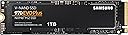
🚀 Upgrade to the SSD that keeps you ahead of the curve — speed, endurance, and cool under fire!
The Samsung 970 EVO Plus 1TB NVMe M.2 SSD leverages advanced V-NAND technology and PCIe Gen 3.0 x4 interface to deliver blazing sequential read/write speeds up to 3,500/3,300 MB/s. Designed for professionals and gamers, it features Dynamic Thermal Guard for optimal heat control and comes with Samsung Magician software for drive management. Backed by a 5-year warranty and up to 600 TBW endurance, this compact SSD offers reliable, high-performance storage that transforms your computing experience.


| ASIN | B07MFZY2F2 |
| Best Sellers Rank | #56 in Internal Solid State Drives |
| Brand | Samsung |
| Color | Black |
| Customer Reviews | 4.8 4.8 out of 5 stars (60,356) |
| Date First Available | February 10, 2019 |
| Flash Memory Size | 1 |
| Hard Drive | 1 TB Solid State Hard Drive |
| Hard Drive Interface | NVMe |
| Hardware Platform | PC |
| Is Discontinued By Manufacturer | No |
| Item Dimensions LxWxH | 3.15 x 0.9 x 0.87 inches |
| Item Weight | 0.32 ounces |
| Item model number | MZ-V7S1T0B/AM |
| Manufacturer | Samsung |
| Product Dimensions | 3.15 x 0.9 x 0.87 inches |
| Series | SAMMZV7S1T0B |
T**S
Excellent SSD Upgrade
Purchased the Samsung 970 EVO Plus SSD 2TB NVMe M.2 for my mid 2015 MacBook Pro (Excellent computers that many people still use and love). For some time Apple played evil by not permitting SSD upgrade other than from one company, which made prices expensive. I used a Sintech adapted (about $12) for the installation. Installation was very easy. It is quite fast and works very well. I am very happy. Installation/Migration recommendations: First, check out the Apple Support Boot to Recovery Options. There are a few way to reload or migrate files after purchasing the SSD upgrade. 1) Not recommended. Cloning the SD with specific cloning apps. I do not recommend. Too much hassle. 2) Mot recommended. Attempting to use an external USB enclosure for the new SSD and using the migration process through Disk tools (reboot to recovery). You will need to format the SSD, load system, and then start migration. Unfortunately, the disk or enclosure will likely not be recognized. You may very well get frustrated. 3) Best method. Create and use and external USB Boot drive. It will take a bit to load the files on the the USB thumb drive, but it is very worth it. This process will work. Make sure you do a little homework on how to make a boot drive and for migration. Then shut down the computer and install the new adapter with the Samsung SSD "internally." Then restart with the external Boot Drive that you just made, and make you way to Disk tools (pretty clear cut). The drive will now appear. Format the SSD and load system. You can now migrate files using either the Time Machine back-up that you should have made, or place the new SSD in the external enclosure and use the Migration tool. I chose to remove the SSD, place it in my external USB/SSD enclosure, and then use the Migration tool. To do that I restarted in Recover Mode (Not the external boot drive) again made my way to Migration. It took a while to migrate all of the data (over night for 900 GB) but it worked very well. You will need to log in to a few apps. You may also need to take care of any cloud services that will re-sync. DropBox may to a a bit of attention. I did not include all of the steps. Do a bit of homework. It is not that hard. But follow the steps. * Be patient and do the migration right. This SSD is very good and will work.
K**L
Blazing Fast NVMe Drive – Perfect as Extra Cache
The Samsung 970 EVO Plus 500GB NVMe SSD (MZ-V7S500B/AM) has been an excellent upgrade for my system. I use it as extra cache with PrimoCache, and the performance difference is night and day. Transferring large files is effortless — I can move 20GB files between drives in under 30 seconds, which is seriously impressive. The drive is powered by V-NAND technology and a solid NVMe interface, which ensures top-tier speed and reliability. Installation was simple, and Samsung’s Magician software makes it easy to monitor drive health and update firmware. Even under heavy workloads, it stays cool and stable. ✅ Pros: Blazing fast NVMe speeds for file transfers and caching Works seamlessly as PrimoCache storage 500GB capacity is perfect for system cache or high-speed storage Backed by Samsung reliability and software support Consistently stable and cool under load ❌ Cons: 500GB fills up quickly if used as a primary storage drive Pricier than SATA SSDs (but the speed is unmatched) 💡 Tips: Perfect for cache acceleration with tools like PrimoCache. Pair it with a larger HDD to balance capacity and speed. Update firmware via Samsung Magician for best performance. Make sure your motherboard supports NVMe M.2 before buying. Bottom Line: The Samsung 970 EVO Plus 500GB is a lightning-fast, reliable NVMe SSD that excels as a caching drive or high-speed storage solution. For anyone working with large files, gaming, or boosting system responsiveness, this drive is a rock-solid investment.
J**E
5/5 great SSD at an even greater price point(buy m.2 SSD screw install kit)
This was my first time upgrading and installing an M.2 drive. It’s an incredible drive for an incredible price. Did about a days worth of research, found 3 or 4 that I liked, and landed on this one. Glad I did. Everyone knows the EVO lineup has always been good and a contender, this one doesn’t disappoint. I went from benchmarking about 300-400mbps r/w speeds to a whopping 3350 read and around 2600 mbps write speeds. Loading screens cut in half or better, 4K textures in games load in insanely fast, it’s incredible. I have read that the 250gb version of this SSD has its write speeds limited by a fairly large amount, however. Samsung magician is a neat little app that does work on a lot of non Samsung drives, and it allows to benchmark and compare your drives. As well as doing a little optimization for them. The drive itself is super easy to install, and most motherboards nowadays don’t require you to mess with any settings in your bios to allow the drive to work. If you find yourself booting up windows after installing the drive and you don’t see it in your drive list, don’t fret. Windows won’t recognize your new spiffy drive until you format it, which can be done easily through searching “partition” in your search bar, click “create and format hard disk partitions”, if you’ve just installed a new drive, the following screen will prompt you about your new drive. Right click the box that has your SSD size and says “unallocated” and choose new simple volume, leave the next screen with max and simple volume the same amount(you shouldn’t have to change anything) then next screen choose a new drive letter, you can choose any that are available, next page file type should be NTFS by default, default allocation size, and check perform quick format. You can change the “new volume” to anything you want, as that will be the name of your new drive. Hit next, finish, and boom your new drive will now show up in your file explorer and you can start installing! If you’re looking for an upgrade from a older SSD, and your motherboard has a slot for an M.2 NVMe drive, this is a no brained. It’s also almost as easy to install as a stick of ram, aside from having to lock in with a screw. Oh, yeah so this product doesn’t come with any screws or standoffs to be able to lock it in. You can buy a basic generic “M.2 SSD screw installation kit” for $5 -$6. Comes with like 4 screws, 4 stand-offs, and a tiny little screw driver made just for this. So please don’t forget to pick one up if you don’t have any, cause it’s a sad feeling when you crack open your case and insert the drive only to realize you gotta wait for another delivery or go drive somewhere to find one. Overall 5/5 stars easy and one of the best investments I can recommend.
R**N
Kaliteli hızlı kargo
A**.
El SSD nvme M.2 Es una buen inversión, trabajas con buenos tiempo de carga y productividad Me llevé 3 días intentando instalarlo. Les comparto como lo solucioné: 1. Primero al abrir la laptop (Desconecten la batería de la placa madre) Instalen el SSD en la Laptop con un tornillo porque no lo trae (Conecten de nuevo la batería) y cierren la laptop 2. Descarguen el Firmware de Samsung Magician y lo montan porque es un archivo ISO y luego el Data Migración lo instalan y lo ejecutan (Esperan que la migración termine y les pedirá que apaguen la laptop.) 3. Encienden la lap, esperan que cargue y buscan en el inicio de Windows “Crear y formatear particiones del disco duro” inician, se les abrirá administrador de discos y notarán que aparece el SSD desactivado. 4. Sobre el SSD dan click derecho o sobre cualquiera de sus particiones y lo activan. 5. Luego Reinician y cuando este por encender entran a la BIOS con FN + F2 y se desplazan hasta Boot y hasta abajo en el apartado de EFI desplazan con F5 o F6 al Windos boot Manager (Samsung SSD 970 evo plus ) al primer lugar y debajo el (ST) y de ultimo EFI PXE. Guardan los cambios y esperan que se apague. 6. Luego encienden su LENOVO Y720 y Listo! Arranca con el SSD nvme M.2 Samsung EVO 970 Plus rápidamente! Cualquier duda les leo gente!
B**N
Works fantastic in my new pc. Great price too. Seems fast
E**L
No hay punto de comparación entre las unidades SATA (sin importar si es disco duro o SSD) y estos nuevos m.2 NVMe, la diferencia se nota bastante, tengo mi sistema operativo instalado en este Samsung 970 EVO Plus y arranca en cuestión de segundos, lo único que lo limita es la pantalla de inicio de sesión de Windows. De igual manera, los programas que más utilizo en mi día a día están instalados en esta unidad y los abre demasiado rápido, no se tarda prácticamente nada. Si tú actualmente cuentas con SSD conectado por SATA, quizá dudes un poco en comprar estas nuevas unidades, pero en realidad considero que sí valen la pena ya que van a acelerar por completo el rendimiento de tu equipo (dejo una imagen adjunta comparando la velocidad de un SSD Kingston con este nuevo m.2).
B**G
Samsung has always produced great products and their NVME SSDs are top of the line. I upgraded from the Samsung 860 EVO SATA, and though from SSD to SSD, I still can see a performance boost. Initially, i was concerned the m.2 SSD was heating up to around 50 deg C seen in the Samsung Magician App due to insufficient airflow being so close to the motherboard, which got me worried about the heat affecting the lifespan of the product. But after a week, it has settled down to around 38 Deg C, which I am still not sure of the reason. But overall, great product, great price from Amazon, and great performance!
Trustpilot
3 weeks ago
3 days ago