Buy anything from 5,000+ international stores. One checkout price. No surprise fees. Join 2M+ shoppers on Desertcart.
Desertcart purchases this item on your behalf and handles shipping, customs, and support to Bolivia.
โจ๏ธ Elevate your typing gameโcomfort, control, and customization in one sleek package!
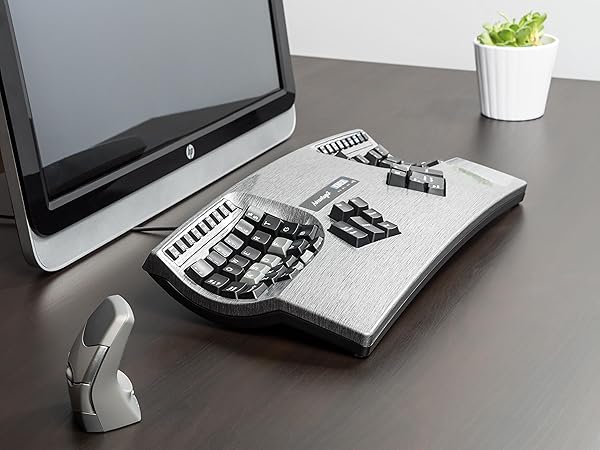
The Kinesis Advantage2 Ergonomic Keyboard (KB600) features a unique contoured split design with 68 keys, Cherry MX Brown mechanical switches for tactile precision, and 4MB onboard memory for full programmability. Designed to reduce wrist and shoulder strain, it supports multiple OS platforms with plug-and-play ease and is backed by a 3-year manufacturer warranty, making it the ultimate tool for professionals seeking ergonomic excellence and productivity.


| ASIN | B01KR1C5PY |
| Additional Features | Ergonomic, Split Keyset Design, Wrist Rest |
| Antenna Location | Office |
| Best Sellers Rank | #586 in Computer Keyboards |
| Brand | KINESIS |
| Built-In Media | Kinesis Advantage2 Keyboard |
| Button Quantity | 87 |
| Color | Black |
| Compatible Devices | Plug-and-Play compatible with all USB operating systems (no special drivers required) |
| Compatible Operating System Family | Linux, Windows |
| Connectivity Technology | wired |
| Customer Reviews | 4.3 out of 5 stars 499 Reviews |
| EU Spare Part Availability Duration | 3 Years |
| Enclosure Material | Silicone |
| External Testing Certification | Nรฃo aplicรกvel |
| Generation | First Generation" or "Generation 1 |
| Global Trade Identification Number | 00607998600078, 05050914962609 |
| Hand Orientation | Ambidextrous |
| Item Dimensions L x W x H | 16.5"L x 8"W x 3"H |
| Item Type Name | KINESIS KB600 Advantage2 Keyboard |
| Item Weight | 2.2 Pounds |
| Keyboard Backlighting Color Support | Single Color |
| Keyboard Description | Ergonomic |
| Keyboard Layout | QWERTY |
| Manufacturer | Kinesis |
| Mechanical Keyboard Switch Model | Cherry MX Brown |
| Mfr Part Number | KB600 |
| Model Name | KB600 |
| Model Number | KB600 |
| Number of Keys | 68 |
| Number of Sections | 3 |
| Power Source | Corded Electric |
| Recommended Uses For Product | Office |
| Series Number | 600 |
| Special Feature | Ergonomic, Split Keyset Design, Wrist Rest |
| Style Name | Tactile Brown Switches and QWERTY Keycaps |
| Switch Type | Tactile |
| Theme | Ergonomic Keyboard Design |
| UPC | 607998600078 |
| Warranty Description | 3 Year Manufacturer |
B**N
So good I got 2 of them! And no more wrist and hand pain!!!
This might sound extreme, but I think this keyboard literally changed my life. I say "think" because I'm not sure what could have been. I am a software engineer. Needless to say, I spend a lot of time at a keyboard. Over the years (I'm 39 by the way) my hands and wrists have progressively got worse. I would hear cracking, and constant aching in my hands and wrists. I just assumed that was par for the course with my job. As time went on, it got worse, and I decided to look into keyboards. I've had the split wrist ergonomic keyboards in the past and I liked them, but I thought I would look into something else. After reading tons of reviews, looking at and seriously considering every crazy keyboard style out there. I looked at all the start ups, oldies, etc. I had some criterion: - Nothing but the best ergonimics - mechanical keys - programmable I finally settled on the Kinesis Advantage 2. Setup was as expected. Now that's because I was already aware that there are KVM switches often have compatibility issues for keyboards like the Kinesis. This prevents you from being able to use the keyboard input on the switch. I have a KVM switch (IOGear Miniview DVI 4 port USB KVMP Switch). When reading the reviews from both companies, I knew it wasn't going to work, but I already had a workaround. Basically, because your keyboard has the multimedia controls (like a lot of other of your cool keyboards) and some other advanced features, KVM switches don't recognize them. That doesn't mean that you will have any drivers on your windows PC (or Mac/Linux/etc) or anything like that. It's just a keyboard to everything else in the world... but your KVM switch. This problem was easily solved by using one of the standard USB connections on the switch. I just have to push the button on the switch now. I also hooked up a standard keyboard for the rest of the people on this planet that don't know how to use my keyboard... so I just use that to actually control the KVM so it's really fine in the end. If you are planning to use a KVM switch have a look at the Kinesis web page, they have identified some that do work, sometimes only in a partial manner. As any other review of the Kinesis will tell you, it takes time to get used to. Plan on that. I spent a lot of time on Type Racer practicing in my down time. I completely stayed away from standard keyboards for about 2 months (mostly). I made a lot of mistakes and made a lot of mistypes, hitting double keys, etc. It was obvious from the start how much better the ergonomics were. I was able to easily program some macros into the keyboard. As I mentioned, I'm a software engineer. There are a lot of patterns that I type many times a day, I can do this with a single keystroke now. So far, I haven't found a need for it yet, but the keyboard has different layer settings so if I'm switching between editors that have different auto completion features (i.e. how {} and () brackets are written out and tabbed... developers know what I'm talking about). The Cherry keys are all they are cracked up to be. It's my first mechanical keyboard set so I don't really have much to compare them to, but the keys are wonderful. They are clicky, but not too bad. People I work with have not mentioned much about it so I assume that it is not too bother some. Now, on to the real reason you would buy this keyboard. The ergonomics... As I mentioned, it was obvious immediately how much more comfortable this keyboard is. I'm not sure exactly at what point it was, but my wrist pain went away... and I'm talking about a 2 months... probably less. I didn't have any diagnosed carpal tunnel or anything like that, but the pain was constant. It's also important to note that I have reduced shoulder and neck pain because my arms are in a more natural position as well. I carried my keyboard back and forth to work gladly every day until I got one for my work. At that price my work wanted a doctors note, which I gladly went for. At this point, I have had the keyboard almost a year. I will now switch between "normal" keyboards and the Kinesis pretty easily enough. It literally becomes painfully obvious how much better the Kinesis is after typing at a "normal" keyboard for more than 5 minutes for me now. My wrists will start to hurt almost immediately and I think that I've been doing this all my life. I'm seriously considering switching to Dvorak now that I have one at work and one at home. I was thinking that it might help me separate my brain more from the "normal" keyboard so switching would be easier. I did get the Dvorak version for work to plan for this and will likely buy the keys for my home keyboard. Have a search on Youtube for a review on the Kinesis Advantage 2. There is a very good one that is about about a 15 minute in depth review of the "Human Keyboard". Pros: - Ergonomics - Program-ability - Ergonomics - Build quality - Ergonomics - Actually smaller than it appears in pictures. - Ergonomics Cons: - KVM Switches... but a lot of other high end keyboards will suffer - It's completely different from all other keyboards (but that's why your buying it right?) so switching between "normal" keyboards can be awkward, but it's not as bad as I expected. - Fatter and taller than a "normal" keyboard but slightly shorter. It might not fit well in those desk drawer keyboard trays. - could be considered loud, but nothing louder than any other mechanical keyboard. In the end, this keyboard does exactly what it says, every other review I read is spot on. If you are serious about your ergonomics, are experiencing pain in wrists and shoulders. I'm not saying this is going to cure you... but it might. In conclusion, I "THINK" this keyboard changed my life, because I will hopefully never know, but I was quite certain that I was developing some long term chronic problem with my wrists and hands. As of a year later, I don't worry about this nearly as much.
M**D
A Touch of Modern for The iPad Pro
I am a big fan of the Kinesis Ergo keyboard. I have one that I bought 10+ years ago, the Professional, that is still chugging along with almost no issues. So when I decided that I was going to amp up my IPad (and other computers) experience, I decided to go with another Kinesis Ergo. It works great connected through a QGeeM USB-C adapter. The keyboard does not disappoint, the brown switches are nice and crisp with a hint of mushiness. It is nice to see theyโve upgraded the function keys from mushy rubber to sweet mechanical switches. If you have an older keyboard, note the brown switches on this one are more crisper, or less mushier, than the older model. Iโve never customized my old keyboard and donโt plan to customize this one, but it is nice the customization feature is now moved into the keyboard itself. Looking at the keyboard, theyโve also added volume controls as well as one-touch switches to go between query-duvorak-Mac-windows and there is even a button called โstatusโ. The beep-on-click feature is also still present. As many other commentators have noted, this keyboard is really expensive. I held off on buying a 2nd one for a long time and seriously considered getting a Logitech or Microsoft Ergo instead. It is a very hard decision and Iโm still split about it. Other drawbacks are, for this price point, the plastic feels cheap. Also I was expecting blue switches under the blue keys, it would have been a nice highlight. Another sad observation is the letters are still glued onto the keyboard which means theyโll fade out over time. At this price point Iโd expect them to be pressed in. And just to finish it off, it is 2021 and there is no LED backlighting. How am I supposed to see the keys in the dark when Iโm on a marathon coding session? Even my $30 Razer I got used off eBay has customizable LED backlighting.
R**L
Great but takes some getting used too.
This is probably the best keyboard I've ever purchased but it can be incredibly frustrating at first. It definitely takes about a month to totally re-orientate your muscle memory. The placement of the keys is well thought out to reduce the amount of reaching you need to do, which is the point, and is easy to learn key location. However, its the reaching part that takes some time to get used too. At first I was constantly overreaching for every key, hitting multiple keys at once accidentally. Basically you need to keep telling yourself to reach half as far. This doesn't sound that complicated but changing the way you've been doing something for 30 years takes a little bit of time to change. If you are a computer programmer I would say this keyboard has some huge advantages. If you've ever done any programming for any length of time you'll quickly realize that many of the major programming keys are almost all on your right pinky finger, and worse yet they are all keys you must reach for. These are . / ? ; : ' " = + [ ] { } | \ _ - and of course backspace, shift, control, Delete and enter. My right wrist constantly hurt because of this. On the Kinesis the Backspace, delete, control and enter keys are under your thumbs and this is awesome. Not only are they easier to reach but they are faster and more intelligently placed. The + and = keys are moved to your left side. This takes a minute to get used to but balances the work load better between both your hands. There are also macro's if you want. I set a few up for things like lambda function boilerplate but honestly setting up snippets in your code editor is usually a better way to go. Overall I'm pretty impressed and my wrist hurts much less then before. My typing speed seems to have improved slightly but not dramatically.
C**N
I love my Advantage2 keyboard
I bought this keyboard a few years ago and had to come back to leave review because itโs that good. I have carpal tunnel and cervical spine issues and typing on regular keyboard was extremely painful. I tried the Kinesis Freestyle Edge but itโs too big for my hands and the split keyboard was too awkward to use. So after reading and watching reviews, I bought the Advantage2. What a great keyboard! The layout and key well keep the my fingers tips from burning. It took a few days to adjust to thumb clusters but now I type considerably faster than I did before. Moving keys to the thumb area reduced strain on the pinky from hours of copy/paste. I have not used any of the remapping or macros but intend to. Itโs expensive but the ROI is worth it if you are online all day. I bought second used one so I can leave it in the office. Cons: itโs a weird shape so traveling/commuting is awkward. I wish Kinesis would offer glow-in the dark keycaps to make up for not have an LED keys. The Advantage360 looks amazing but I prefer a stable keyboard I can use in my lap if I wanted and the Advantage2 has the stability I need. One last wish: gel pads. The Advantage2 palm pads are flimsy pieces of foam that I supplement with improvised cushions. All in all itโs a great upgrade.
P**N
Highly Addictive
When we use email, we rely upon the assumption that one is able to type . The key to skilled typing is to stare at the console, not the keyboard . The key to being able to look away from the keyboard is the ability for the keyboard to allow the fingers to feel combined with the ability for the fingers to reach the keys . The Kinesis Advantage 2 contains old fashioned keys which can be rested upon and emit a clear click when pressed to confirm the action of the keyboard itself . The curves employed within its wells and thumb keys allow the hands to stay in one place while being able to reach all the keys . 1a2b3c4d5e6f7g8h9i0j easily typed without moving the palms. The Kinesis Advantage2 is missing the Right Alternate key which is often called the "compose" key because it allows entry of characters that cannot be typed. This keyboard does not have a menu button. The keyboard is highly programmable, but the original keys are the foundation of the code, so if a key does not exist, then that key-code cannot be generated. As a decades long typist, it took me a long time to adjust to this keyboard. It was especially difficult to accustom myself to the control keys being moved. I would have returned it if it wasn't programmable. The keyboard layout with arrow keys here and there is bananas. Do yourself a favor right away and group all the arrow keys together on a bottom row so typos won't be so terrible. The number keys are reachable which eliminates the need for a numeric keypad. I always liked a numeric keypad, but the use of a numeric "lock" is unforgivable. The volume keys are right there and pressing it by accident initiates terror. Do yourself another favor right away and remove the numeric lock key as soon as you get it. You can still reach in with your pinky and push the button to program the volume keys to be normal instead of the useless keys that sit in their place. I tell myself that I am to drill a hole and add a button below the delete key which performs the function of a keypad shift, but someday hasn't come yet. A numeric keypad lock wouldn't be bad as a heavy click toggle switch centered between the thumb tables. This keyboard is highly addictive. I just purchased my third one and I have been using the Kinesis for six years. The keys are just like the old-fashioned keys which have depth, travel, and sound. It's so nice of have a keyboard whose keys can be rested upon without pressing them. The wells comprehend the reach of my fingers. I no longer have to hover and move my hands everywhere just to type. Keys are easily swapped so that this key does that while that key does this. And, it comes with a key puller, but many keys are uniquely shaped to help properly create the wells, so there it is fruitless to move keys around the keyboard so that the labels match your program. I stuck a trackball in the space in the middle of my keyboard. It's upside down so that the ball is low on the board, but I quickly got used to it.
A**R
I probably wouldn't recommend it for software developers
So yes it is ergonomic in a way that all the others (Ergodox EZ, Ergodox Moonlander, Keyboardio Model 01, Keyboardio Altreus, Kinesis Freestyle 2, etc. etc. etc.) can never be but it seems to be completely from the 90s. Like the insides don't even use flip-chips- Google some pics of the inside. This isn't a design issue, they are simple chips after all, I just mean to highlight that this thing hasn't changed in 20+ years. They updated the Windows logo on the Windows key for Windows 10, so that's nice, but alas it's out of date again as Windows 11 just came out. This is the most comfortable keyboard I have ever used, and the keys feel very high-quality (thanks Cherry!) however the locations of some of the keys seem to make this keyboard less ideal for software developers. I wonder how ergonomic it really is when someone like me is reaching for those { } and [ ] keys all day (remapping is an option though). I think for software developers, you want to go with something like an Ergodox Moonlander- you get more tilt (and adjustable tilt) versus the Advantage 2, the Moonlander is thinner, has more key switch options to choose from, and the keys are backlit (for $350 Kinesis can put some RGB LEDs on this thing, come on guys). The Moonlander also has much better software for remapping keys if that's your thing. I wish I got the Moonlander, if that isn't obvious. Anyway, on the Advantage 2 there are three function keys printed with "media" icons- mute, volume down and volume up. You press the "keypad" button next to them to activate them (and shift to the numpad layer on the right half of the keyboard), but you have to press again to deactivate the layer. I just remapped these keys (normally print screen, scroll lock and pause/break) to be the volume keys by default. What's odd is that these are the only "media" keys. None of the others have "previous", "play/pause", "next" etc. prints on them, probably because there isn't room for more text/icons on the other function keys, they mostly all serve a secondary purpose already. Still, it feels strange to have dedicated volume keys. On the Keyboardio Model 01 for example, you just hit Fn and then N M < become the volume control keys. Even though these keys don't have the volume icons on them, I still find this flow easier than the way the Kinesis Advantage does it. The software you use to remap keys looks awful and appears to be written in Electron. The process for remapping keys involves performing multiple key combos on the keyboard to get it to mount its 4MB "flash drive" where key remaps are written to a TXT file. It gave me a random error once, and I'm not sure why, but after that it wouldn't actually write the key remaps to the TXT file, so I guess I have to figure out what's going on there. The instructions look like they were printed off of an office printer, on office paper folded in half. This keyboard seems more like a college student's senior project than a $350 piece of "professional" equipment. I assume they own the patent to the shape and just milk the profits from a 30-year-old design. Finally, I bought this from Amazon expecting to be able to return it if I didn't like it, but nope, no returns on this guy, only exchanges. This is typical for a $300+ keyboard, but I assumed buying from Amazon this would not be the case. It might be that buying from Amazon directly you can return this keyboard and I just bought from a third party seller as they had the lowest price. Anyway be careful of that...
G**G
Best 300 dollars ever spent on an ugly keyboard like this
I've had this keyboard for about 8 months now. At first, I was kind of skeptical about whether if this would be worth the price, but oh boy this keyboard is amazing. Once you get used to it, it's super comfortable to type with. The best part about it is that the space, enter, backspace, and other control keys are all in the center where your thumb is located at. Would have been nice if they made the escape key a little bigger, but you can always remap it to somewhere else. I used Apple's magic keyboard before this and I would constantly feel pain in my wrist after typing just for a little bit. After getting this keyboard, I almost never feel the pain now. This keyboard has a pretty steep learning curve and it took me about a month or two to get comfortable typing with it. But, I was learning a new keyboard layout at the same time (Colemak) to fix my bad habit of typing with two fingers, so if you aren't learning a new keyboard layout at the same time, it'll probably take even less time to get used to it. Pros: - Very comfortable to type with. - Relieves wrist pain - The keys you use the most are typed with your thumbs instead of your pinky - Remap program is easy to use - Gives you a comfortable palm mat - Comes with extra keys for Mac (ex. alt option instead of Windows key) - Great tactile feedback, makes a lot of noise (if you don't want a loud keyboard you can get their red "silent" version) - Easy to clean (all keys can be removed easily with a little remover tool and cleaned) - Easy to switch between Mac and Windows mode (when I use Windows Bootcamp on my Mac I just need to press a single key) Cons: - Ugly (the logo on the center looks pretty bad lol) - Steep learning curve (takes at least a month to get used to it) Conclusion: Definitely worth the 300 dollars if you are willing to put in the time to learn how to use it.
C**S
Expensive but worth it
I've experimented with so many other keyboards before landing on this one. Started with a Typematrix before college, switched back to regular keyboards like keychron Q1, then got a Moonlander (which is also split, ortholinear, and has thumb clusters). The biggest thing all of those other keyboards miss that the Kinesis gets right is the keywell - it's convex so it encourages a natural wrist position, and all your fingers rest perfectly on each key. The column of keys for your pinky is slightly higher up and the column of keys for your middle finger is slightly lowered... because your fingers are different lengths. The thumb clusters encourage using your thumbs for super common keys like enter and backspace rather than your weak pinky. And these thumb clusters are way more natural to use compared to the Moonlander. When your fingers are on the home row, you can access all the thumb cluster keys without moving your hand because of the varying heights and angles of each of the thumb cluster keys. Clearly a lot of thought and research went into the design of the key layout. Also, it's super easy to remap keys. It's onboard - you press the remap button, press the key you want to move, and the destination key, and you're done. Makes it really easy to experiment with different positions; for instance, I switched the shift key with the one above it on both sides so that my shift keys were on the home row since it's one of the most common keys. When it comes to build quality and premium feel... Yeah, it's plasticy, yeah it has abs keycaps that will get shiny over time, yeah it has no backlight, and yeah it's wired, but clearly the money was spent on making the most comfortable keyboard, not the most flashy or premium feeling. Even though it's plastic, it feels super durable and I don't think it'll break very easily. If you can't do wired connection, the Kinesis 360 Pro is wireless and very similar, but honestly I prefer the simplicity of the wired connection on this one. No worrying about charging. I also like that it's one solid unit rather than distinct halves. Less to keep track of, less positioning to adjust, but that also means it's less flexible since you can't change the distance between each half of the keyboard like you can on the 360. I think this one is easier to have in your lap though than the 360 with its two distinct parts. All depends on your needs and wants. Speaking of having it in your lap, one downside of this keyboard is that it's raised higher than a lot of other keyboards. The actual keys are lowered down into the unit, but to enforce that, the actual body itself rises up quite a bit. You'll need to make sure you have a chair that can go high enough or a keyboard tray that makes it lower so you're not hurting yourself by scrunching up your neck and shoulders to reach the higher level. I find placing it in your lap is a super comfortable way to use it that gets around this, but consider getting a drafting chair if you need your chair to raise up higher than your current one does. Also, just a small thing, but I love having dedicated function keys (F1-F12). Might be silly, but I've never had a keyboard before where you can just press a function key - without holding down a separate "fn" key or other layer shift. If you use VS Code or develop in general, there's often a number of super useful shortcuts tied to the F1-12 keys, and it's very handy to access them at the press of a button without any key combos or anything else. Highly recommend this keyboard if you experience any sort of pain in your wrists, arms, shoulders, or neck from sitting at a desk typing all day. It's so so worth it. My pain went away so fast. Just make sure the rest of your setup is ergonomic as well. The Kinesis Advantage 2 User Manual has a whole section on how to make the rest of your desk setup ergonomic. Make sure to follow it.
T**R
Un gran invento, pero prรกcticamente tienes que aprenderte las nuevas posiciones de las teclas
Un diseรฑo fuera de serie en la bรบsqueda de un teclado ergonรณmico que reduzca las dolencias y malestares de quienes pasan muchas horas tecleando textos. Sin embargo, lo devolverรฉ, porque en mi opiniรณn, dado su diseรฑo curvo, las teclas tienen una posiciรณn inusual, por no decir extraรฑa, por lo que se tiene que reaprender la posiciรณn de las teclas para llegar a dominar este teclado. Tengo 50 aรฑos y empezar de nuevo significarรญa una preocupaciรณn, mรกs que un apoyo.
E**L
Best Option if you type a lot...
I've had several natural keyboards in my time, including a much loved Microsoft Ergo one and the Sculpt. But I started to notice wrist, arm, and neck pain, so I ordered a Logitech version of the natural keyboard and their vertical mouse. It got worse because the keyboard was so much larger and the mouse hurt my hand. So back they went which was a shame as I love Logitech normally (I'm using an MX Master 2 mouse now). Still, I had to do something and I'd heard of Kinesis before. I looked at the Ergodox as well, but that looked even worse. Enter the Advantage 2. I still flub typing the c key as my finger thinks it should be lower down, but I'm almost back to where I was with speed and my body thanks me. Expensive? Yes. Worth it if you're typing a lot? Absolutely! I'd highly recommend this to anyone that wants to feel better about their ergonomics and who wants a premium mechanical experience. And....I can switch to a laptop keyboard with no issue and back again as well.
A**A
Amazing keyboard for RSI
I was recently diagnosed with RSI. A general economic keyboard did not help the situation and this is where I decided to try this. First challenge was you have to relearn how to use this keyboard as all the characters are slightly displaced. So I actually tracked my progress on typing test.com. on the first week I was at 13 words per minute and subsequently I progress back to 60 words per minute. the only biggest thing I hate about this keyboard is that it is not wireless, given how long it is really been in the industry.
A**E
Sehr geeignet bei RSI
Hat meine Probleme mit RSI sehr verbessert. Innerhalb von einer Woche werden die Schmerzen in der Hand bereits spuerbar weniger. Beste Investition in meine Gesundheit und in meine Arbeit als Programmierer.
D**D
Excellent but takes getting used to
I've used split keyboard for ages and finally wanted a mechanical one. There are a number of alternatives, all expensive, so I decided to give this one a try. I got the version with Cherry Brown switches. Once I got over the learning curve - and don't fool yourself, there is one - I found it very comfortable and easy to use. It's even got a Mac mode which alters the mapping of the thumb keys slightly (and it comes with the correct keycaps for a Mac). I found the hardest thing to get used to was the thumb clusters - specifically, moving the backspace and delete keys from right-pinky to left-thumb. I love it now though. A word to the wise, though: If you can't touch type, you should think again before considering any split keyboard, especially this one. You WILL have to learn to touch type to use this keyboard if you can't already... and you will find out all about the little bad habits you had built up as you get used to the ortholinear key layout.
Trustpilot
2 weeks ago
2 months ago