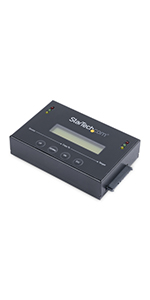
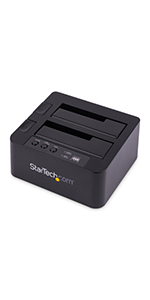
💾 Clone like a pro, skip the hassle, own the speed!
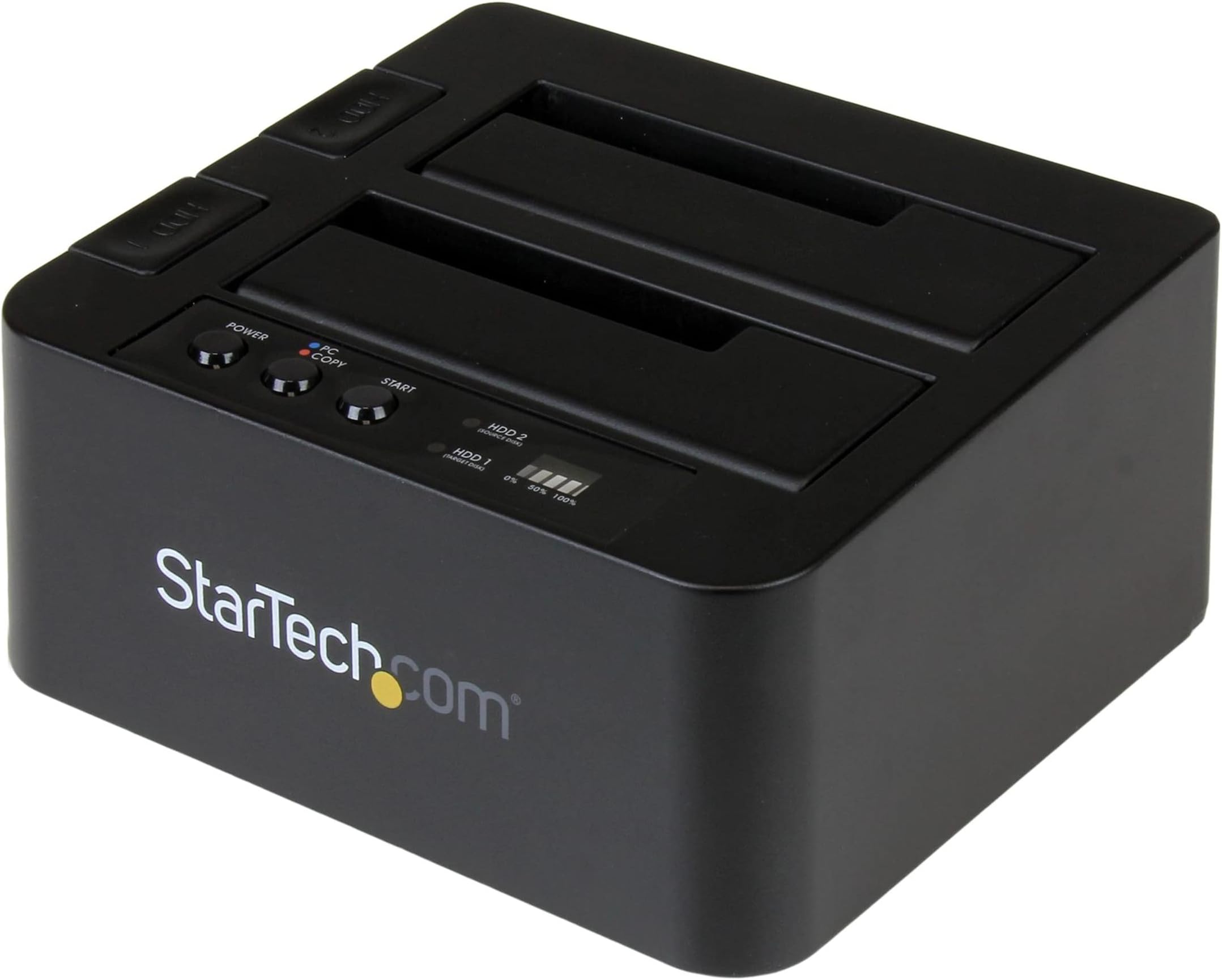
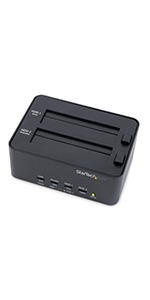
The StarTech.com Standalone Hard Drive Duplicator is a professional-grade dual bay SATA HDD/SSD cloner and docking station featuring USB 3.1 Gen 2 (10Gbps) connectivity. It supports 2.5” and 3.5” drives of any capacity with sector-by-sector standalone cloning—no PC required. Designed for IT professionals, it offers a tool-less, tray-less top-loading design with power and status LEDs, ensuring fast, reliable disk duplication and recovery backed by a 2-year warranty and lifetime technical support.


| ASIN | B019Y4JE22 |
| Are Batteries Included | No |
| Best Sellers Rank | 33,863 in Computers & Accessories ( See Top 100 in Computers & Accessories ) 41 in Hard Drive Docking Stations 5,990 in Tablet Accessories |
| Compatible devices | Laptop, Personal Computer, Tablet |
| Connectivity technology | USB |
| Customer Reviews | 4.6 4.6 out of 5 stars (2,041) |
| Data transfer rate | 10000000000 Bits Per Second |
| Date First Available | 28 Dec. 2015 |
| Form Factor | External |
| Global Trade Identification Number | 00065030863551 |
| Guaranteed software updates until | unknown |
| Hard Disk Description | HDD and SSD |
| Hard Drive Interface | USB 3.1 |
| Hard disk form factor | 3.5 Inches |
| Item Weight | 508 g |
| Item model number | SDOCK2U313R |
| Item weight | 0.51 Kilograms |
| Manufacturer | Startech |
| Material | Plastic |
| Max number of supported devices | 2 |
| Memory storage capacity | 28 GB |
| Power Source | AC |
| Processor Brand | Refer_Manual |
| Processor Count | 1 |
| Processor Type | Unknown |
| Product Dimensions | 14.22 x 13.21 x 7.11 cm; 508 g |
| Series | USB 3.1 Duplicator Docking Station |
| UPC | 065030863551 |
| Voltage | 12 Volts |
| Wattage | 36 watts |
D**L
Piece of cake!
So far, I have only used this in copy mode. It made a complex job of repeated swapping and copying my boot drive using software into a simple one-step process. In response to other reviews, the manual is simple but that’s because the device operation is so simple - plug in the source and target drives, switch on, select copy mode and press start! It took 3hrs 15mins to replicate my 1Tb HDD on to a 2Tb SSD and a few minutes more with a partition manager to extend the boot partition to use the additional space. Maybe those who found the lack of instructions daunting might consider whether they have the necessary skills to handle precious disk drives! To me, this is a perfect solution for one-step disk replication that saved me hours of fiddling about in the back of my laptop. Update - I’ve now cloned my fourth drive. 1Tb Samsung 2.5” SFSE Momentus HHD laptop drives on to WD Blue 3D Nano SSD took 3.25 hours each. 2Tb WD 3.5” Black Enterprise HDD desktop drives on to the same WD Blue SSD took 4 hours each. Surprisingly, the 3.5” HDD drives generated the most heat so I took the precaution of keeping them cool with a fan. So far the clones have worked perfectly, albeit with a simple software partition adjustment to use the extra space for the laptop drives.
H**D
Trust me, this dock works flawlessly, why take chances with your valuable data?
I previously purchased an Inateck dock which just failed to work as advertised. So due to Amazon's excellent return policy, I returned it and purchased this StarTech dock. The build quality is so much better than the Inateck dock, the buttons on the top are made of hard plastic and upon pressing, you feel an assured click. The dock is light weight but feels well made. It features two chunky HDD eject buttons, which is a nice touch. The simple light indicator on the top lets you know when the drives are initiallised and lets you know the clone progress (0-100%). Cloning: Formated the target HDD using my Win 10 PC, disconnected USB cable from PC. Put source HDD in the first slot (labelled HDD2), activated offline clone sequence as instructed in manual..... clone successful after a few hours (500gb) Transfer files from one HDD to another using Win 10, Mac Mini, Macbook Pro: 1. Win 10, Macbook pro and Mac Mini could all see two HDDs (I just had to assign drive letters on my particular Win PC) 2. I transfered files from first HDD to second HDD using Mac Mini, Macbook Pro and Win 10 with no issues Tips: 1. If you hold down the PC/Copy button then press "Start" you will start the clone process. 2. As manual stated, I formatted the target HDD in Windows Disk management to make sure it was ready for cloning O/S Conclusion: I'm thouroughly impressed with this little dock from StarTech, It does exactly what it says on the tin. Now bear in mind it is more expensive then the other docks, but trust me, this one works flawlessly, why take chances with your valuable data?
D**1
the instructions are pretty bare. I had to use a few YouTube ...
I ordered this to use for business purposes. Obviously I was not planning to use the dock too frequently, as this product doesn't last as long with continued use as more expensive products, which I already knew before purchasing. I tested it out on an SSD hard drive which I knew had issues, just to bench test it and see what it could or couldn't do. Doing so bought up two key issues...the instruction manual, and also the labeling available on the front of the device. When you first start using this device, the instructions are pretty bare. I had to use a few YouTube videos just to compensate for my lack of knowledge and, gain a bit of confidence before using it. Once confident enough, the first thing I wanted to try was the erase method. There was not a lot of input on the internet surprisingly about how to erase an entire hard drive. My intention was to place the hard drive to a starting point where it may be possible to restore to it's original settings, before faults occurred by erasing the faults and any other information that maybe still be on the hard drive that was preventing it from functioning, where I had already tried check disk and disk management, which had already failed to this point. This is where I found the issues with both the manual and the labeling on the device as they both supply such basic of information where further research was required. After attempting completion of erasing the entire hard drive, needless to say this had not worked. The hard drive had too many errors before the dock was able to complete the task in hand. Also to note that all the lights had gone out on the device, to the point where I did not know if I had any power going to the device. This resulted in me having to turn the dock off and on just to see if I hadn't broken anything. Everything was good. The dock function was the next bench test. Due to my particular model of laptop, I found the dock had to be switched off before the laptop could find it. It was no good having the power switched on while the laptop was starting up, You had to turn the dock completely off, wait for the operating system to load, then turn it on. *NOTE: this was for my particular model of laptop. Other devices may have a different reaction, and also the hard drive was still in place within the dock before it was switched on. Everything on the dock method worked fine and even disk management was able to find the hard drive. The duplication method works as described. Currently running my original operating system on a new hard drive as we speak, and it's as if nothing has changed. All my settings, and programs are in the same space except now I have more space available. You will need to go into disk management to extend the hard drive, but that is probably the only minor thing you will have to worry about. It only received 4 stars as the labeling on the dock and the instructions within the manual are basic and for something that would have such a huge impact on most devices, I would've thought StarTech.com would've put more effort within these particular areas despite it being a budget device. But saying that, for the price offered and the fact it is a budget device and you get what you pay for. It is still a very useful piece of equipment and I would recommend this item to any start-up business, gamer and also to anyone who would like a useful method to back up their information and memories, delete sensitive information, and also use as external dock for more storage space if required.
M**1
Quality Product.
Excellent bit of kit for cleaning up Hard Drives and restoring them to working order, easy to use with full instructions for all sizes of drive.
O**E
Ideal for cloning from a hard drive to an SSD
I have upgraded a number of computers from SATA hard drives to SATA solid state drives. This duplicatoricator has been very useful to clone the hard drive to the SSD, so that the operating system, applications and data can be simply transferred. The duplicator has two slots for source and destination disk respectively it is even possible to clone a 5.25" hard drive to a 3.5" SSD. The duplicator can also be used to connect a drive to a computer via USB Note that this duplicator does not work with IDE drives.
P**R
Price
Good product fast delivery works well thanks will buy off you again thanks 😊
W**M
Clones without need for downloaded software.
I used this to clone my PC's HDD and also to clone my PVR's HDD without any need to download any software. It is a tad expensive but worth it if you have to use it more than a dozen times.
E**M
I've had this a few years now, use it occasionally as spinning hard drives aren't used as much any more. Good tool to erase a disk you're getting rid of (this is a basic erase, will deter most thieves, but there are more secure methods.) Also work with SATA SSD but make sure you understand SSD loss of performance issues before copying them with this device.
C**T
Conforme à la description, livraison dans les délais
M**A
After having tried to use Avantix Perfect Image 11, Apricorn's Velocity x1 and CloneZilla Live (CloneZilla.ORG) and learning the idiosyncrasies of each method, I decided to buy this unit (I have both legacy IDE systems in addition to SATA systems). The two methods use the onboard motherboard SATA to clone and will tie up the computer for 4 - 6 hours cloning a 500 GB hard drive and the process seemed hit or miss. This device works just fine and clones a 500 GB HD in about 2 hours and 45 minutes. Received this and a 500 GB HD from Seagate well packaged and in 2 days after ordering using Amazon Prime. Cold day so I allowed both to warm up to room temperature before starting. Tried first to clone my primary Windows 8 (W8) drive which suffered castastrophic failure during a Clonezilla clone attempt. Drive was unreadable for cloning. Ran a prescan which seemed to pass. Proceeded to clone backup my 500 GB Vista system to another 500 GB. With power off, plugged in source and destination drives. Set up pretty obvious without reading instructions. Powered on and let the device boot up. It comes up in clone mode. Pressed ENT button and it started cloning. Countdown of GB remainining, 54 MB/s clone rate, and time remaining on backlit LCD is nice. Clone completed in 2 hours and 43 minutes. Hooked the drive up and it booted just fine. Instruction book shows the diagram of the menu options and how to get to menu 8 (hold down ESC until it shows 8, then hit ENTer button). Navigating menus using up and down; Press ENT to select item and use arrows to change the option. When done, press ENT to get back to navigating the menus. Press ESC to go back from a menu option. Decided to go to menu 8 and set the device to skip faulty blocks and duplicate drives Host Protected Area. Then powered off. Attached source 500 GB Windows 8 system and destination 500 GB. Powered on. After boot completed, it displays the Copy HDD option. Pressed ENT and it started cloning. During the 1st 4% clone rate was 4-16 MB/s. After that it stabilized at 54-55 MB/s and completed the clone process in about 3 hours. Put the clone in the computer and it did some interesting things boot, update, reboot, upgrade, reboot. Worked fine. Powered down and then up again several times and the clone just worked normally without issue. I always powered the device off before removing or hooking up hard drive. Instructions seem to imply that one can leave the thing powered on when removing or hooking up drive (i.e. rescan bus to detect new hooked up drives). Hooked this up via USB to PC and it gives options to run normally like a USB drive or RAID 2 drives. Cloned 40 GB Windows 200 IDE to IDE in 45 minutes. Clone works just fine. I set the unit and attached drives on granite countertops in my office next to the computer. This is adequate enough to keep everything stable and keeps the hard drives cool without need for fan. The drives attach on opposite ends of the device, so you'll need good desk space for this. There is no vertical docking bay to hold the drives in a compact package like some of the other docking bays and duplicators. I'm fine with it, though I keep my computer open so I can plug devices in and out as I see fit. This is a techie tool, not for someone who keeps a clean desktop. Very good unit for the Amazon price of $165 and very flexible compared to other devices as it can handle the various IDEs and SATA versions with drives up to 4 TB. This seems to be the do it all unit for legacy IDE and future SATA compared to many of the other less expensive units that appear to be SATA only, some with limitations of no more than 2 TB. Instructions are a little sparse. No documentation on error codes, even on web site. The manual and a specs PDF can be found on the StarTech.COM website. I'm very impressed with this little device. Very flexible. Very easy to use -- plug in source, plug in destination drive, power on and when it's ready, press ENT and walk away (no multiple entries or cryptic questions a la clonezilla or other software duplication options). Frees the computer for use while making a clone. Clone process is much faster than using the computer motherboard. Cloning a drive is faster than trying to use Windows to move data from 1 drive to another. I intend to stick to 500 GB drives to make clones in under 3 hours. Cloning a 1TB drive will take 6 hours. Just beware, cloning to a larger drive will, of course, leave unused space for which one will need a partition manager to reclaim the space on the drive. In this case, one is not really cloning, just copying. Google EaseUS to fine a free partition manager that is reportedly good. UPDATE 3/25/2013 After doing multiple clones of various hard drives, I have found this device will stop the cloning process if the source drive has any read defect. This can sometimes be bypassed by getting to menu 8 (hold ESC down until 8 appears, press ENT, then use arrows to find menu 8 choices, ENT to select choice, arrows to change options, ENT to return to menu 8 select, ESC to return to main menu with options 1...7) and selecting skip sector or skip block. I cloned a 640 GB to 1 TB SATA to SATA in 3 hours and it runs just fine, just before trying the following: One of theI just new Seagate 500 GB ST500DM002 hard drives I recently bought from Amazon.COM and it seems to be having a read problem during the cloning process. I am cloning to another new Seagate 500 GB ST500DM002 hard drive (same drive which I have done multiple clones to without problem during testing). I had an older 2008 Seagate Barracuda which suffered catastrophic failure and couldn't be cloned. If the SATA connector is old, oxidized, or connection loose, then this device will have a problem cloning it. It doesn't seem to have a problem with good working hard drives. I think it would be a good option if StarTech provided SATA 7 pin and power connector cables to be used between this device and the hard drives. I don't seem to have any problems with the IDE side of the connections or cloning processes. UPDATE 3/29/2013 SATA 22-pin Male to Female 20 inch Power and Data Extension Cable -- just purchased 2 of these from Amazon and a 1 TB hard drive. Firm connection between duplicator SATA ports and hard drives. Used 1 cable to connect the 1TB source inside the computer to the duplicator and used the 2nd to attach to the new 1 TB destination. Cloned in 5 hours. Cable is less expensive and longer than the ones offered by StarTech. The StarTech SATA/IDE Duplicator comes with IDE cables, but not SATA cables (which I think should have been included by StarTech). My hard drive duplicating set is now complete and works very well for my purposes of making clone backups of my computer hard drives (both IDE legacy systems and SATA systems). I highly recommend the combination of this duplicator and the 2 cables because the combination now allows me to backup clone my hard drives without having to remove them from the computer.
R**N
He tenido otro duplicador más económico y después de la experiencia recomiendo este. -Los materiales son mejores que otros productos más baratos y da mas confianza. -Se pueden hacer copias entre dos discos iguales, cosa que no pasa con otros aparatos más baratos. -El usb3 va genial. Muy rápido. -Se puede desmontar una disco duro sin que se te desmonte el otro también. -Tiene tapas en las ranuras para que no se llenen los conectores de polvo. -Tiene unos botones en los lados que permiten sacar los discos duros con más facilidad. -Funciona perfectamente como duplicador y como dock para tener dos discos duros externos extra. Solo un aviso para gente sin experiencia duplicando discos duros. Si la unidad de destino es mayor la partición creada será del tamaño de la de origen (hace uno copia 1:1). Para utilizar todo el espacio hay que usar un programa para cambiar tamaños de particiones. Esto no es un defecto, es una consecuencia de hacer una copia exactamente igual. En resumen, es más caro que otros productos similares pero vale la pena. Lo recomiendo.
L**O
Facil de usar,cumple con las especificaciones
Trustpilot
2 weeks ago
2 months ago