Some deliveries may take a little longer than usual due to regional shipping conditions.

DOWNLOAD THE APP


Customer Services
Copyright © 2025 Desertcart Holdings Limited
DOWNLOAD THE APP

🎨 Elevate your art with pro-grade precision and color — don’t just create, captivate!
The Wacom Cintiq Pro 22 is a professional-grade 22-inch 4K UHD drawing tablet featuring an ultra-responsive Pro Pen 3 with 8192 pressure sensitivity levels, a vibrant Pantone-validated display, and a 120Hz refresh rate for near-zero latency. Designed for creatives demanding precision and color accuracy, it offers 10-point multi-touch, customizable ExpressKeys, and ergonomic adjustments to enhance workflow and comfort. Compatible with Windows and macOS, it’s the ultimate tool for graphic designers, illustrators, and digital artists seeking a premium, durable creative experience.


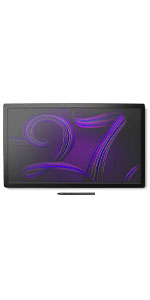


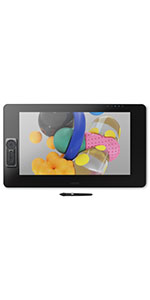
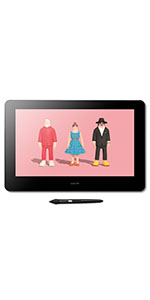
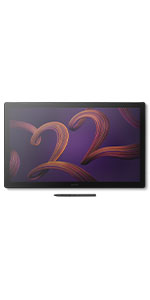

| ASIN | B0BQ7MQ68J |
| Active Surface Area | 18.7 x 10.5 |
| Additional Features | 10-point multi-touch |
| Best Sellers Rank | #106 in Computer Graphics Tablets |
| Brand | Wacom |
| Built-In Media | Digital Pen, HDMI Cable, Pen Holder, Power Cord, USB Cable |
| Color | Black |
| Compatible Devices | Desktop, Laptop |
| Connectivity Technology | USB-C (DP alt mode) x1, USB-C x1, USB-A x1, HDMI x1, Mini DisplayPort x1 |
| Customer Reviews | 4.5 out of 5 stars 642 Reviews |
| Display Type | LCD |
| Item Dimensions L x W | 20.3"L x 12.3"W |
| Item Weight | 11 Pounds |
| Manufacturer | Wacom Technology Corporation |
| Model Name | Wacom Cintiq Pro 22 |
| Model Number | DTH227K0A |
| Native Resolution | 3840x2160 |
| Operating System | Windows, macOS |
| Pressure Sensitivity | 8192 Levels |
| Screen Size | 21.5 Inches |
| Special Feature | 10-point multi-touch |
| Specific Uses For Product | 3D Modelling, Animation, Designing |
| Target Audience | Student, Teacher |
| UPC | 753218984258 |
| Warranty Description | 2 year manufacturer |
M**E
A Professional Tool for a Professional Price
To keep things brief, The Wacom Cintiq Pro is the best display tablet on the market. It's long-lasting, durable, and offers a beautiful 4K Display with high color fidelity, but... it's not for everyone. In this review I'm going to discuss the Cintiq Pro from the perspective of both a layperson and the perspective of a professional artist. I've been using Wacom tablets for about 10 years now, and I've been working as a professional artist for about three. First and foremost, if you're combing through reviews, I assume you're asking yourself the same question I did when I was shopping for a display tablet: -Between Huion's Kamvas, XP Pen's Graphic Display, and Wacom's Cintiq, which brand of display tablet is right for me? Why is Wacom's product so much more expensive than both Huion and XP Pen? Is there something here I'm missing? It really depends on what you want out of your tablet. Wacom's premium price tag is largely due to the fact that the brand dominated the tablet space for nearly half a decade before any real competition (Huion) entered the game, and it established itself as the brand for professionals. That said, Wacom's hardware is designed to last... and last... and last. There's a reason that Wacom still sells and supports the tablets they released a decade ago: they still work as well as ever! In my opinion, buying a Wacom tablet is like buying a pair of expensive leather shoes. It might cost more now, but you know it won't be giving out on you... even if it gets roughed up a bit. My old Cintiq 13HD went through a LOT, and it's still kickin' like new. But does this longevity really justify the difference in price? In my opinion, not really. If all you want out of this purchase is a display tablet that you can draw/paint on, there's nothing you'll get out of the Wacom Cintiq Pro 24 that you wouldn't get out of Huion or XP Pen for a fraction of the price. INSTALLATION: The installation process was surprisingly painless. The tablet comes with two different setup configurations depending on the build of your PC/Mac, allowing you to use either a USB -Type C connection OR a USB and Displayport connection. Because the Cintiq 24 Pro is a 4K display, a standard HDMI port will not work without an adapter. all the cables were neatly packaged and clearly labeled, and I was able to get things running out of the box with no hassle. ACCESSORIES & PORTS: The tablet comes with Wacom's ExpressKey and their new pen. The ExpressKey was the biggest surprise for me; I expected to toss it to the side and keep using my keyboard shortcuts, but the ExpressKey is extremely easy to configure and very easy to get used to. Incorporating it into my workflow was a snap, and it's a feature I think I'll sorely miss if I'm working elsewhere. The additional USB ports and audio port allowed me more flexibility in my workstation setup, which I appreciate seeing as a few of the ports on my main machine are now taken up by Wacom's wiring. SIZE: The size of this tablet is formidable, but not too large for a dedicated office space. In some ways I wish I'd upgraded to the 32 because I'm used to a slightly larger monitor size, but when I'm using it as a drawing surface the tablet feels almost too large! Likewise, when I'm using it as a monitor, the bevels are a bit annoying. When I'm using it as a tablet, I'm glad they're there! WORKFLOW BOOST: The ExpressKey and pen work intuitively with most any software I've tried so far. ZBrush, Substance Painter, Photoshop, Clip Studio, Maya... Being able to customize those hotkeys is fantastic! CONS: The glass on the front is beautifully matte, but does catch a glare just a little more than a standard monitor might. I have to close the blinds in my office (which are directly across from my workstation) while I work to avoid this. I would not recommend buying this tablet without buying a Flex Arm or an Ergo Stand. In the images I've provided you can see it mounted to the Flex Arm. The freedom of being able to rotate and twist this tablet so freely makes it so much more of a joy to use. I've seen other reviews mention that their tablet dies out within 6 months to a year of purchase, so I paid extra for insurance. If any issues arise, I will return to this review with updates. UPDATE: 15 Months later and I have had no issues with the tablet’s functionality. The only thing that’s changed is that the ExpressKey accessory doesn’t stick to the magnetic bevel as well as it used to because the rubber backing of the ExpressKey is prone to collecting dust (which makes it slide). It’s a little difficult to clean, but otherwise… no complaints!
J**N
Best Pen Display I've ever used
The most enjoyable pen display I have ever used. After one year of using it almost every day, I absolutely love drawing with it. It's such an enjoyable experience. I feel like I have so much pen control and the etched glass feels amazing to draw on. The touch is an okay experience. I only use it for zoom and moving the canvas around. I have to turn off touch to draw on Clip Studio Paint, and remove all other gestures for it to be usable for me. But pinch to zoom and moving the canvas are pretty important to me though since I started from an Ipad Pro. It's a huge beautiful display. The 120hz is a really nice bonus in my opinion even for drawing. It just feels like a treat compared to 60hz drawing displays. And then I can also use it for gaming as well. It's pretty nice. The sound noise is as noticeable as my PC that's running Noctua NF-A12s. When listening to music, I don't notice it at all. It's not that bad. I have only ever used an Ipad Pro, Kamvas 13, and a movink but it blows all of those out of the water. Although it rightfully should, considering how expensive this display is. I would definitely recommend this if you can afford it. I wouldn't recommend the stand though. That stand is expensive for what it is, and it still has wobble unless you plant it on the table and put a cloth pad underneath like I do. I'm not an artist that moves the screen a lot though so it's good enough for me. Try an Ergotron or go a little more for a XOOT.
W**Z
Best in class
I have had this monitor for 3 months now. Before I got this, I had tried Huion and Xencelabs displays. Build Quality The build quality is excellent. The materials and fit and finish on my unit are top notch. The glass feels great underhand. Screen Out of the box color reproduction is within a few percent of what was advertised based on my test with an xrite color calibration sensor. There is a very slight backlight bleed on the right edge of the screen but this is only noticeable against a black background and will be covered up by the UI of any drawing program. The screen is very crisp despite the good anti-glare coating on it. Compared to other 4k drawing tablets with antiglare coatings, this one blows them out of the water in terms of clarity (looking at you, xencelabs 24). There is no point in buying a 4k monitor if the anti glare coating is blurry, and with this monitor you truly do get the benefits of 4k. The touch functions fine but I don't like using touch because I will occasionally accidentally trigger it. This is a problem for me regardless of device, even on iPads, so I wouldn't knock this unit for being overly sensitive. It's nice to have a physical switch to quickly disable touch on the back of the unit so I can use touch on occasion if I want to. The 120 hz is very nice but it is the sort of luxury you take for granted until you have to use a 60 hz screen again. The screen is plenty bright for me at default settings, but there are a multitude of different settings you can adjust for colorspaces, etc. I just leave it on default settings sRGB. Drawing Experience The pen is excellent. It is extremely accurate and all pressure levels are usable. I do not see any line wobble in an unstabilized pen on this display. Other Notes I don't use the trigger buttons but they are there if you want them and the buttons feel quality to press. I currently have the unit on the official Wacom stand for it and I think it is also excellent, very solid and easy to adjust. My particular unit has zero fan noise. The pen holder that comes with the unit sucks. Sorry Wacom, but this pen holder is practically designed to drop your pen at the slightest bump regardless of where you screw it in to the tablet. Just something to be aware of, you might want to store the pen somewhere else. The only true downside is this tablet is $3k and the stand is $500. This is certainly overpriced, but I believe the product is best in class for a 22" tablet. Time will tell what the lifetime of the product is but I expect it will last a long time, especially since the display does not use OLED technology.
M**G
Thought I Would Never Need a Cintiq...
I'm a professional artist and have avoided getting a Wacom Cintiq due to the price. Instead, I'd been using off-brand interactive screen displays, my last one being the Dell Canvas 27. I'd used the Canvas for years and loved it, though it was never perfect. Since Dell stopped supporting the Canvas a few years back, I thought it best to get a different interactive pen display in case Windows updates caused the old drivers to cease to work. I really liked the size of the Canvas 27, but it seemed that no one other than Wacom had a 27" interactive pen display. So, I bit the bullet and bought this, hoping I wouldn't regret my decision. The fact is, drawing and painting on the Cintiq Pro 27 is by far the best experience I've ever had. It's smooth, fluid, and simply a joy to work with. I thought the Canvas was a better alternative when I'd purchased it because I didn't really think there could be that much difference in experience. I freely admit I was wrong. The quality of line, the effortlessness of drawing/painting on the Cintiq is unparalleled. For anyone who thinks that these off-brand pen displays can compare ... they can't. Don't get me wrong, they are good. Even great. And they are certainly not near as expensive. But the experience using the Cintiq simply blows them away, from my limited experience having owned and used a few different brands. Having said that, the Cintiq Pro 27 is not perfect. While I like the pen (the adjustable weight really helps it), it seems cheap, which is surprising considering it's importance and what you pay for this entire unit. The buttons on the left and right side (at the back) are useless. They are just not comfortable nor convenient to work with. The pen holder is ... bad. I don't use it. If you screw it into one side or the other, you block use of the buttons (but since you probably won't use them anyway, perhaps that's not a big deal). That's pretty bad design, imo. If you place the pen holder at the top, then you block some of the air vents used to cool the Cintiq. Again, bad design. Not sure what they were thinking when they made this thing. I've heard people complain about the fan noise using the Cintiq Pro 27. I don't even hear it. So, it's a total non-issue for me. I'm giving this 5 stars because it's an utter joy to draw/paint on and the small form factor makes it pretty light overall, which makes it easy to move about on the monitor arm I have it attached to.
A**S
Expensive ... but justifiable.
PROS: - 4K resolution - Fantastic Colors - Almost no parallax - Works right out of the box, and driver-installs are a piece of cake (for me, anyway) - The Pro Pen 2 is wonderful (best I've ever used) - The Remote, albeit a wonky button setup, works fluidly with the tablet and my workflow - Very sturdy design (feels high quality) CONS: - Expensive - No stand included in the box, just two small kickstands built under the tablet - Poor quality-control on earlier units (I don't know if they curbed that, or if I just got lucky with mine) EXTENDED REVIEW: I've owned both a Huion GT-191 and a Cintiq 13HD, and the Cintiq Pro 24 makes them both feel like cheap toys. Don't get me wrong, you can achieve essentially the same thing with any of these devices. You don't need a $2,000 tablet to make digital art. It's honestly excessive unless you can justify it for the work you do. I can't, but I obsess over using the best hardware available. That being said, I don't regret it! I went in mainly excited for the nearly non-existent parallax and the pro pen. I expected the 4K resolution to be nothing more than a gimmick for easy marketing. To my surprise, the resolution ended up being one of the most prominent features this tablet had to offer. Going from a Huion GT-191 V1 at 1080p with a really poor color grade, the Pro 24 blew me away. The colors are vibrant, and I'm able to work super close to the screen without seeing any pixels. It's fantastic. The etched glass is also really nice, and coupled with the felt nibs, it's the closest to feeling like paper that I've experienced on any tablet. The remote is also super handy. I'm still getting used to it, so sometimes I'll tap the scroll wheel and it'll do something unintended, but I still prefer it over built-in buttons on the bezels. I should add -- going from a Huion back to a Cintiq, it really is fantastic how these tablets just work right out of the box. My previous Huion consistently had driver errors or just downright wouldn't work for seemingly no reason at all. It felt refreshing to plug it in and just start drawing immediately. The main con for me is the lack of a stand in the box. I get that they wanted to market the Ergo Stand, but surely they could've thrown in something to allow more than one super-low angle. Like a lot of people, I resorted to just propping a few books under the little kickstands, and that essentially solved my problem. I've also seen some negative reviews for the Pro 24 where they've received essentially unusable units. I can't speak on that since mine was in perfect condition out of the box. It seems like Wacom had a quality-control issue with this model on release, but they've since smoothed that out. (I don't know though, maybe I just got lucky?) I was super anxious about spending $2,000 on a pen tablet when the last two I've owned had annoying issues and were letdowns in their own ways. I'm happy to say that the Pro 24 lives up to its price and delivers exactly what I was hoping for. That being said, I came from a Huion GT191, so my point of reference isn't the same as someone coming from another high-end pen tablet.
S**D
Expensive frustration
So here's the thing. When the tablet is working, it's the best drawing experience I've ever had. I'm using Fresco and Photoshop and what I can do with these apps and the tablet has truly taken my illustrations to a whole new level. If I can imagine it, I can make it come to life. I love it. The drawing space is generous. The pen is precise. The surface feels wonderful and the pen slides smoothly along. The tablet is plenty bright, and though others have mentioned the fan noise - I don't find it distracting. The tablet looks great and it doesn't feel cheap, it exudes quality. That said... My all to frequent reality is that the purchase of this tablet has been a frustrating disappointment which at this point has turned into outright anger. I envy the lucky people who have purchased the tablet and get to draw, and draw and draw on their Cintiq. I'm lucky if I get 5 minutes before the pen freezes and that's it. Time to restart the computer and implement the latest 'solution' Wacom tech support has sent my way. Oh goody, this time it's 2 minutes of use before the pen freezes. Repeat until I can't take it anymore and have to walk away without getting much of anything done. My Cintiq has become an expensive lump sitting on my desk. I truly believe it's a software problem, and I'm getting anything but actual answers from Wacom. When I'm done with this review, I'll be taking photos of the ports and the connections, and again sending in all of the requested info about my system. I'll be hopeful that THIS time there will be a real solution and I can finally start freaking drawing, but after all the disappointment, I'm not even going to bother to be hopeful. I struggles with how to rate this product. I'm not saying don't buy this tablet, clearly, not everyone is experiencing my level of frustration. Like I mentioned in the beginning, when it's working, the Cintiq is awesome and there's a lot to love about it. Just be aware that things might not go smoothly, and it might be a really, REALLY long time before your Cintiq will start to pay back the money you put into it. Final note - I do plan on updating this post if I ever get a real solution that gets my tablet working as intended.
M**W
Amazing accuracy, clarity, and color, the rest is a story.
I've been a nonprofessional photo-realistic pencil portrait artist for 25 years so I know pencil on paper feel. Wacom makes a couple of lofty claims for this tablet. The first claim is that there is "zero parallax". This claim is 90 percent true, so I give them credit on that one. There is about 1mm of parallax when you look to the side. Straight on it literally feels as accurate as a pencil on paper, and that's impressive. Although I have tried the Huion's boned glass pro model and that one was close to this for parallax and accurate, almost. The second claim they make is "pencil on paper" feel, and this is total bs. Drawing on this feels nothing like drawing on paper with a pencil, unless we're talking blunt round very hard pencils on very slick plate surface gloss paper. The screen is etched, yes, and it provides a tiny bit of bite, but not like paper. Switching the pen nib with the supplied felt tip did help a little, as the resistance was more tactile and noticeable. So I give it a 5 out of 10 here, only because they got me expecting a "paper" feel in their advertisement. Wacom needs to reword thier ad here to be honest because that's technically an exaggerated statement. The thing you really have to pay attention to though is cleaning the screen from skin oil that rubs off while drawing because it makes the pen feel slick on the surface and loses that tactile feel totally in those oily areas. I will have to be sure to keep a drawing glove on and a very soft fleece shirt sleeve rolled down on my arm to prevent this oil build up. Side note, the Huion pro with laminated glass was a very similar screen. I think if Huion made felt tips they would be equal here, except for better parallax on this Wacom, but not by a whole lot. The Huion probably had 1.5mm parallax. The third thing they advertise is "virtually no pen lag". They use the loophole word here "virtually". Virtually compared to what? This has the same exact pen lag/cursor delay as all of the other cheap models of other brands I've tried. So this statement is mis leading in my opinion by Wacom. I mean, we are spending 2 grand on something because of reasons that would probably sell themselves. Why add mis leading leads into the ad? I contacted Wacom and they said only Windows PCs experience this lag, although talking with others who have used both I was told they all lag, so what's up Wacom? How about just not mentioning the lag so we don't expect something we aren't getting here? I wouldn't have probably even been bothered by the cursor lag unless they had mentioned it. The size and clarity, the color, the accuracy and parallax are all amazing! The rest is about average. At the end of the day you get 4k resolution on a 24 inch screen with almost no parallax and top of the line color. So my gripes are probably nit picking but for 2 grand I think that gives me the right to mention.
M**E
Not perfect, but still the best pen display out there.
UPDATED REVIEW- 8-9-24 I upgraded from the 24 pro (non touch) to the 27 pro- been using it for over a year now- sorry it took me soo long to get to reviewing it but here we go- LONG TIME WACOM USER- My wacom history continues to grow! I started out with a few years using an intous many years on cintiq 22hd a few years on 24 pro 1 year on 27 pro. So what do I think of the 27 pro after a year of using it? well... captain... It's a sick upgrade and I've been loving it dearly. PRICE- Now 3500$ bucks is a lot... or very little... depending on your situation in life and perspective. Is art something you are serious about? Or just a little side hobby thing? Will you use the cintiq a lot or a little? If you are serious about making art- this is the best it gets for digital creation. Why settle for less? But if you are in a hard spot in life by all means get a cheaper cintiq- or a 3rd party device. They are still great n all. But you get what you pay for here, and no other screen can do 27 inches at 120hz and 4k resolution, which is part of why this is soo expensive And YES! these features are a big deal, at least to me. Let's dive into the details so I can explain more why I think it's worth it. TOUCH BY DEFAULT- The 27 pro comes with touch- they don't offer a non touch variant this time thankfully. So for the first time ever I have a cintiq with touch... a feature I always thought I wouldn't care much for, and passed on to save money in the past. So what do I think of it now that I've used it? wow... I love touch and now consider it a must have feature!! It was a total game changer to how I work and especially practice. On many websites (not youtube for some reason though sadly) you can even zoom in on videos with pinch to zoom. This is just a delight in ref study. Or even just moving 3d models around on some apps without having to grab a mouse. It helps to keep my right hand drawing. Turns out you don't really need many express keys or an express remote or even a keyboard\mouse, at least not that often, all thanks to all the things touch can do for you! Your lack of imagination might limit how much you get out of touch, but otherwise for folks who understand how to use it- it's a serious productivity improvement to have. The only real con for touch is all these apps that poorly support it. Most major apps work fine with it, but less popular and obscure\older apps often won't. Touch will get glitched and incorrect inputs at times too- just like any touch device. It's easy to turn it off\on if you need at times thanks to a little switch on the back of the cintiq. I personally keep touch on 95% of the time, it's really not bad for doing most things- and quite helpful to have on. REFRESHED- I said a long time ago- in my 24 pro review- that I would buy the next cintiq generation if it had 120hz and Wacom did exactly that with the 27 pro, so I made good on my claim and I gotta say, the 120hz refresh rate is awesome for drawing, it is just soo fluid and responsive! Can I tell the difference from 60hz to 120? Absolutely! And the extra screen space thanks to being 3 inches larger than my 24 pro makes it feel about the perfect size where I can do huge drawings. It's really cool in games too, though I wish this was a g-sync enabled monitor. Screen tearing n all- it's still better to have than not though. 120 is just soo buttery smooth if you have the GPU horsepower for it and the screen is HD and large enough to be a really solid gaming monitor too! PRO- PEN- THE THIRD- I love using the pro pen 3! It's soo lightwieght by default just like you are holding a real pencil. It even responds to ever bolder levels of tilt and pressure than before! I just with the pen button panels were not so fragile- I have broken 3 buttons on 2 different pens over the last year. I have learned how to superglue these back into place for a more permament fix- but it does mean you cannot replace the button panels then (at least how I do it- to ensure they don't break again). Wacom oddly enough- sells replacement parts for everything BUT the button panels... Isn't that nice of them? Sheesh... The lack of eraser is also a weird choice by wacom- but in apps that actually support the 3rd button as an eraser- it IS (as some people have claimed) better way to go about erasing anyways. I've learned to appreciate that sort of a hotkey I guess. It sure is annoying in apps that don't support it properly however. Sometimes you can invent workarounds, sometimes you cannot. It depends what app ya know? I'd say most major apps use it "good enough" to perfect. It definitely varies though. WHOOSH OF THE FAN!- The fan noise is there, but it's not bad. The screen is surprisingly chill too the touch, definitely colder than the heavy hot screen of the 24 pro. We don't get to turn the fan off this time around with settings, so thankfully it's not bad. VESA MOUNT IT!-- Make sure to pair it up with some kind of VESA mount. I use the same ancient ergotron LX that for years held up my 22hd and my 24 pro- but many kinds (including official wacom one) will fit it just fine. It didn't need a huge heavy metal mounting plate like my 24 pro did, and I'm very happy about that. The 27 pro actually looks like a much smaller screen next to 27 pro- just because there is very little bezel area which means this screen overall when mounted is MUCH LIGHTER then the 24 pro. Overall a very good change I feel. Soo bye bye bezel I say! It was fun to rest my hands on the bezel area- and it was handy how there was 2 magnet spots for the included express key remote, but I can live without those features, esp since the 27 pro has touch. Touch lets me eliminite a LOT of the need for express keys- so the 4 on the back are more than enough I find, I rarely even need to use them. SPEAKING OF SIZE- Maybe someday I'll feel ready for a 30inch cintiq- but right now 27 feels about perfect. I said the same of 22hd, and the 24 pro in the past soo... We'll see. A bigger canvas does allow for bigger ideas I find. Getting much bigger though will mean you REALLY have to reach to get around, so I dunno... Depends on your physical size I suppose, I could see a really short person not liking how big the 27 pro is already. DEAD PIXELS- not this time captain! YEEHAW! My 24 pro had some, so I was very happy to get a perfect 27 pro. LIGHT BLEED- yep- seems all 27 pro's have it to some degree. Definiely something I hope they nail down better in future generations, but it's still okay to use like this. It's only mostly noticable in really dark games and it doesn't completely ruin the experience or anything but yes, would be better if this was solved in the future. It's roughly as bad as the 24 pro, so this has been an issue for a number of years now. PEN HOLDER- it's bleh... esp if using a vesa mount and moving\tilting the screen around a lot. The pen will fly out easily and it's a flimsy thing. I'd like to see a pen silo\magnet type of solution in the future. A pen shaped dip somewhere on the top maybe with magnets that hold the pen in place? SCREEN SURFACE- It's nice- I can't tell if I liked the 24 pro surface more or not, both are very good to sketch and paint on having a little bit of a toothy feel to it like real paper would. CABLES- Sadly one of the important cables was MUUUCH SHORTER this time than on the 24 pro. I actually had to re-arrange my pc tower to bring it closer so it would reach. You are gonna have to keep your tower fairly close to your cintiq. Seriously, why is it soo short? FREE SOFTWARE- It was lame again. Just like the 24 pro- I never bothered to register again because of this. SCREEN DURABILITY- Just like all my other cintiqs- no scratches, and I never bother with screen protectors. Been using these things for over a decade now- seem pretty solid to me. Just don't do stupid things around it and it won't get scratched. =D CUSTOMIZING- Just like older cintiqs it's very easy to set custom hotkeys for express keys, stylus buttons. I wish touch functions could be more customizable however. DRIVERS- Less software and edge of screen glitches then ever before. Cintiq's keep getting more solid over the generations. Wacom drivers still fail now n then but it's far less often than the 24 pro. It also restarts much nicer without having to reboot the entire pc as often. OVERALL OPINION- The 24 pro was a huge upgrade to my 22hq years ago when I got it. It served me very well, but nothing so far compares to the 27. I figured it would be a nice upgrade, and it sure was. I adore my 27 pro. ADORE IT! It is the ultimate device for anyone who loves to draw-paint-sculpt. It is worth the price if you can afford one. It definitely makes drawing and painting more fun to do. We've come a long ways from the old 22hd and earlier, and I can't wait to see what the future holds for the cintiq line. Really, I'm already looking forward to a future generation of insanely responsive buttery smooth cintiqs with 240hz and 8k resolution, but this screen is a dream in the meantime and I'm glad wacom built it. Hopefully the pro pen 4 won't be soo fragile- and maybe bring back an eraser while letting us keep a 3rd button still. =D CLOSING ADVICE- Good luck on your decision, I know it's something that takes a lot of thought. If you do as many miles in drawing as I do in a year, anything that makes drawing even slightly better is worth a lot IMO. That's the best advice I can give ya. Get your priorities in order, cause if you spend 2000$ a year in smokes\energy drinks\booze\gambling you got no right to complain about the price of a cintiq, period. People in ACTUAL hard sitations in life can, but it won't do any good. This is bleeding edge tech for drawing screens, with the very best in stylus\software\app\touch support and drivers. Which STILL needs a lot more support for all kinds of apps- so imagine how much worse support would be on a 3rd party cintiq-like device! 3500$ gets you much more than just hardware here. Whatever you do, just make sure it isn't an intuous like device that you end up buying. The disconnect between hand and screen is very real. Get a proper drawing screen like a cintiq or a cheaper 3rd party brand. The people who prefer intous to cintiq are just being silly. 99% of folks would clearly like a cintiq more. Get the linework and curves you actually intented the first time! Seriously how do those people ink like that! I never could...
Trustpilot
1 month ago
1 week ago